

Print Reports
Bundle Manifest
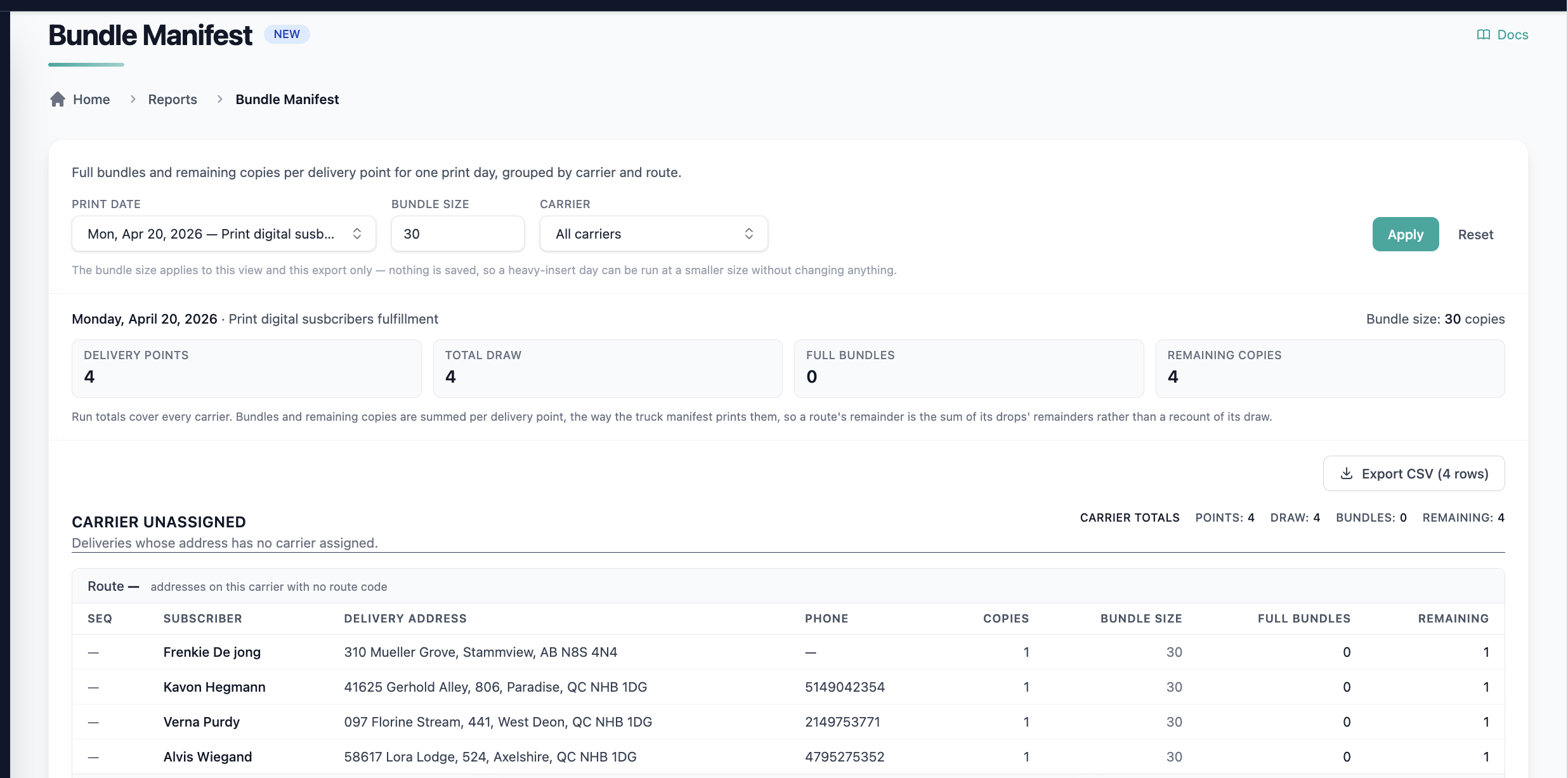
The Bundle Manifest converts each delivery point's draw into the number of full bundles and remaining copies your team needs to prepare for a print day. Use it to plan bundling and loading for every carrier and route before papers go out.
How it Works
For the date you select, Pelcro pulls the draw for every delivery point from your existing fulfillment data. It then divides each draw by the bundle size for that day:
| Value | Calculation |
|---|---|
| Full Bundles | Total Draw ÷ Bundle Size (whole bundles) |
| Remaining Copies | Remainder of Total Draw ÷ Bundle Size |
For example, a delivery point with a draw of 137 and a bundle size of 50 needs 2 full bundles and 37 remaining copies.
Bundle Size by Delivery DayYou can set a default bundle size for each delivery day, since bundle sizes often differ by day (for example, a smaller size on heavier Sunday editions). When a specific date needs a different size, such as an edition with large or heavy inserts, you can override the bundle size for that date only. The defaults stay unchanged for all other dates.
Generating the Report
- Go to Reports > Bundle Manifest.
- Select the fulfillment creation/delivery date.
- Confirm the bundle size for that date, and override it if the edition needs a different size.
- Review the manifest, or click Export to download it.
Report Layout
The report is grouped by Vendor/Carrier → Route. Within each route, delivery points follow their existing Delivery Sequence, so the manifest matches the order carriers deliver in.
| Column | Description |
|---|---|
| Delivery Sequence | The delivery point's position in the route |
| Subscriber / Account Name | The customer receiving delivery |
| Delivery Address | The address copies are delivered to |
| Phone Number | The customer's phone number |
| Total Draw / Copies | Total copies for that delivery point on the selected date |
| Bundle Size | Copies per bundle for the selected date |
| Full Bundles | Number of complete bundles to prepare |
| Remaining Copies | Loose copies left after full bundles |
Totals are shown for each Route and for each Vendor/Carrier across its routes.
| Report Setup | Description |
|---|---|
| Date Input | Fulfillment creation/delivery date |
| Grouping | Vendor/Carrier → Route → Delivery point |
| Sort Order | Existing Delivery Sequence within each route |
| Totals | Per Route and per Vendor/Carrier |
| Data Source | Existing vendors/carriers, routes, delivery sequence, customers, addresses, phone numbers, and draw |
| Export | Available |
Fulfillment Activity Report
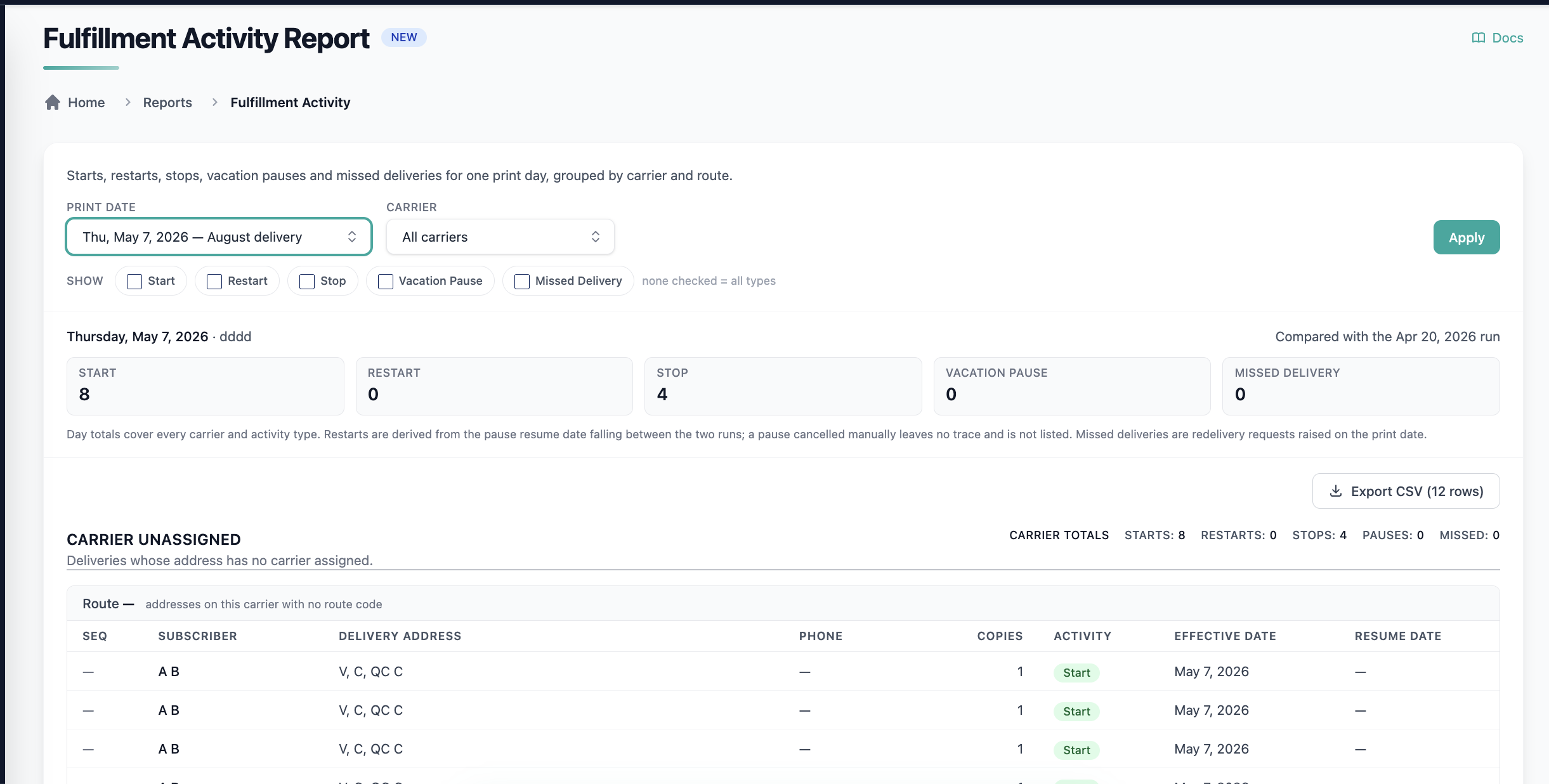
The Fulfillment Activity Report gives district and circulation managers a single daily view of every circulation change for a print day: starts, stops, vacation pauses, restarts, and missed deliveries. Activity is grouped by carrier and route, so each change can be followed up with the carrier responsible for it.
How it Works
The report is not tied to a single fulfillment. For the date you select, Pelcro consolidates activity across all relevant fulfillments and their Bundle Tops, then organizes it by carrier and route.
| Activity Type | Source |
|---|---|
| Starts | Bundle Tops |
| Stops | Bundle Tops |
| Vacation Pauses | Bundle Tops |
| Restarts | Bundle Tops |
| Missed Deliveries | Pelcro's existing delivery issue data |
Resume DatesFor vacation pauses and other activity with a scheduled return, the report shows the resume date alongside the effective date, so managers can see exactly when delivery restarts.
Generating the Report
- Go to Reports > Fulfillment Activity.
- Select the fulfillment creation/delivery date.
- Review activity by carrier and route, or click Export to download the report.
Report Layout
Activity is grouped as:
- Vendor/Carrier
- Route
- Subscriber activities
- Route
Each subscriber activity shows:
| Column | Description |
|---|---|
| Subscriber | The customer the activity applies to |
| Delivery Address | The customer's delivery address |
| Phone Number | The customer's phone number |
| Quantity / Copies | Copies affected by the activity |
| Activity Type | Start, Stop, Vacation Pause, Restart, or Missed Delivery |
| Effective/Delivery Date | The date the activity takes effect |
| Resume Date | When delivery resumes, where applicable |
Totals by activity type are shown after each Route, and again for each Vendor/Carrier across all of its routes.
| Report Setup | Description |
|---|---|
| Date Input | Fulfillment creation/delivery date |
| Scope | All relevant fulfillments and Bundle Tops for the selected date |
| Grouping | Vendor/Carrier → Route → Subscriber activity |
| Totals | Per Route and per Vendor/Carrier, by activity type |
| Export | Available |
Updated 20 days ago