

AI Studio
Design your subscriber screens by describing them, preview every change, and publish when you're ready.
Overview
AI Studio lets you change how your Pelcro screens look. These include sign-in, sign-up, checkout, account pages, and paywalls.
Tell AI Studio what you want to change using everyday language. You can see the result in a preview before publishing it.
Changes made in chat stay in your draft until you click Publish. If your site is already using that theme, publishing updates what subscribers see. If not, you can use Make live to switch to it.
You can also change settings in Design control. These settings take effect immediately when you click Save changes, without publishing.
Each design is called a theme. You can create several themes, try changes, and choose which theme your site uses.
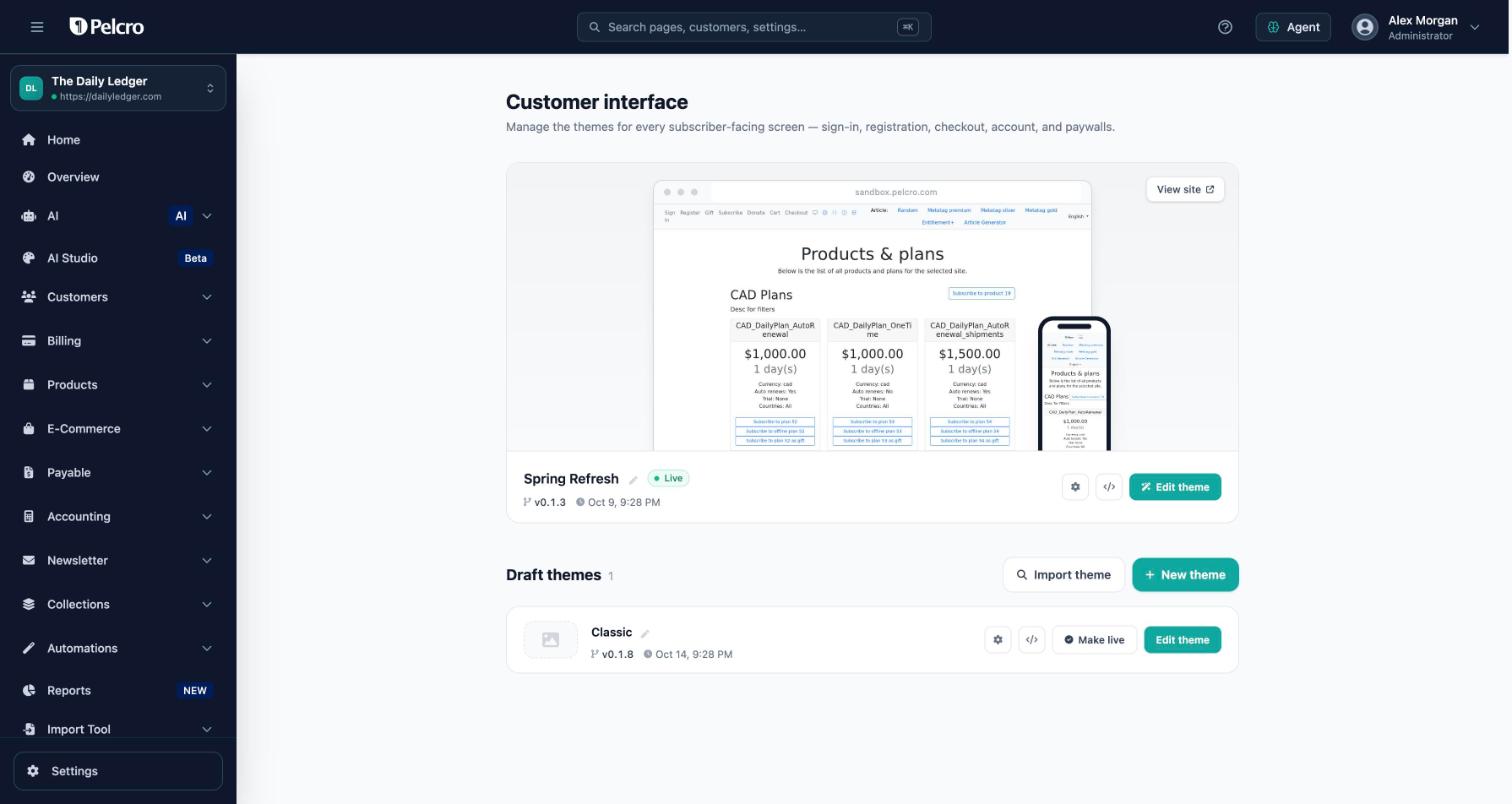
The AI Studio page: the theme your site uses, and your draft themes.
Who Can Use It
AI Studio is in Beta (an early version) and is available on Enterprise accounts.
Account owners and users with the Publisher Admin or Publisher Support role can access AI Studio from the dashboard menu.
AI Studio uses the Pelcro AI Agent for chat. The AI Agent must be enabled for both your account and your user access.
Key Ideas
| Term | What it means |
|---|---|
| Theme | A design for the Pelcro screens your subscribers use. You can have several themes for one site. |
| Draft | Changes you're working on but haven't published yet. You can check them in the preview. Subscribers don't see them. |
| Publish | Saves your draft as the latest published version of a theme. If your site uses that theme, subscribers see the changes. |
| Make live | Chooses which theme your subscribers see on your site. |
| Version | A saved version of your theme created each time you publish. You can restore an earlier version. |
Create Your First Theme
If you haven't created a theme yet, your subscribers see Pelcro's default design.
To create your own theme:
- Click AI Studio in the dashboard menu. This opens the Customer interface page, where you can see your themes.
- Click Create your theme. If you already have themes, click New theme.
- Enter a name for your theme.
- Choose a starting design:
- Pelcro default — Starts with all screens using Pelcro's default design. You can change any of them.
- From scratch — Starts with only the sign-in, sign-up, and password screens. Other screens, such as plans, cart, and subscriptions, are not included at first. You can ask AI Studio to add them.
- Click Create theme to open your new theme in AI Studio.
Creating a theme does not change what subscribers currently see.
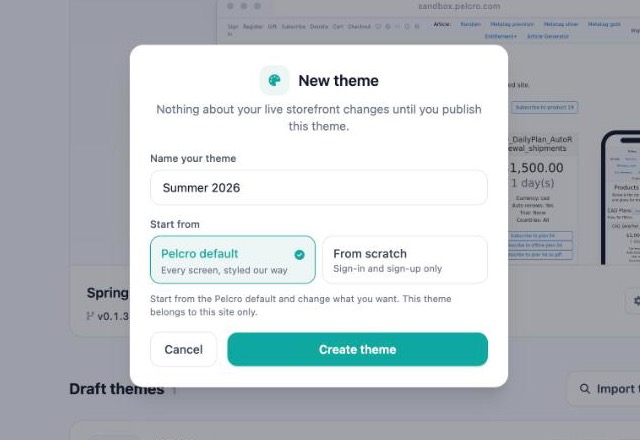
Name your theme and choose a starting design.
Change Your Theme With the Chat
AI Studio has a chat where you request changes and a preview where you check the results.
- Open AI Studio and click Edit theme on the theme you want to change.
- Describe what you want in the chat. For example, "Make the sign-up button our brand colour and give it rounded corners."
- AI Studio starts making your change. You'll see this message: "Your change is on its way — it will appear here in about a minute."
- Check the result in the preview. If you want to adjust it, send another message, such as "Make it a bit darker."
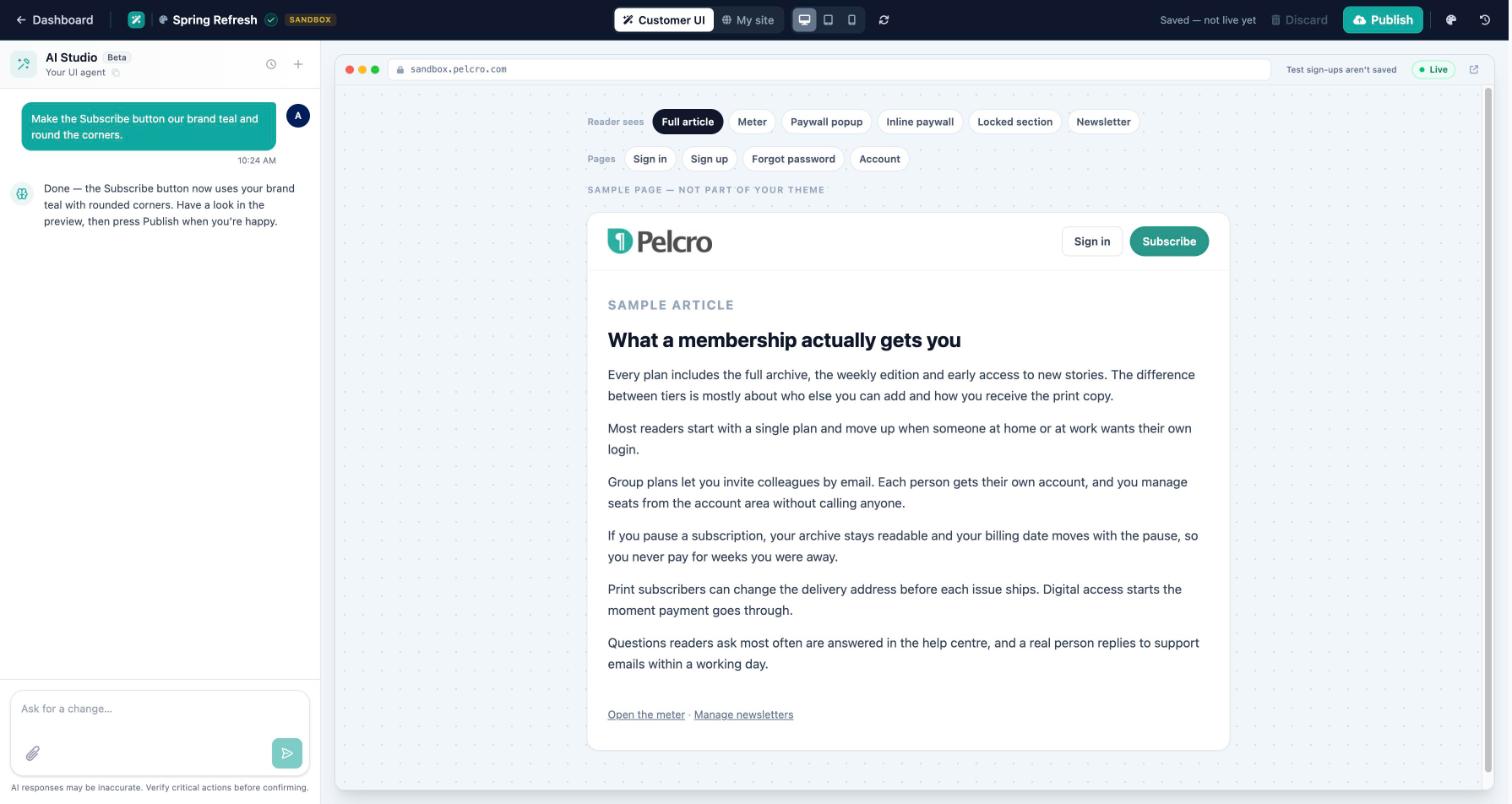
Describe the change in the chat. The preview shows the result.
Preview modes
- Customer UI — Shows your Pelcro screens without the rest of your website.
- My site — Shows how your draft looks on your website. To use this view, you need to set your website address (Site URL) in Settings.
Good to know
- You can stop a change while AI Studio is working on it. AI Studio reverses that change, and it won't reach your subscribers.
- If a change fails, AI Studio reverses it automatically. You'll see: "That change didn't work — we've undone it. Nothing reached your subscribers." You can describe the change differently and try again.
- To start a separate chat, click New Conversation.
Fine-Tune With Design Control
You can adjust some settings without using the chat.
Open Design control to change settings in these groups:
- Screens — Screen settings.
- Brand — Colours and branding.
- Registration — Registration settings.
- Checkout — Checkout settings.
- Content — Text and display options.
- Behaviour — How your screens work.
For example, you can change your main colour to update the colours used across sign-in, checkout, and account screens.
Click Save changes to apply your settings.
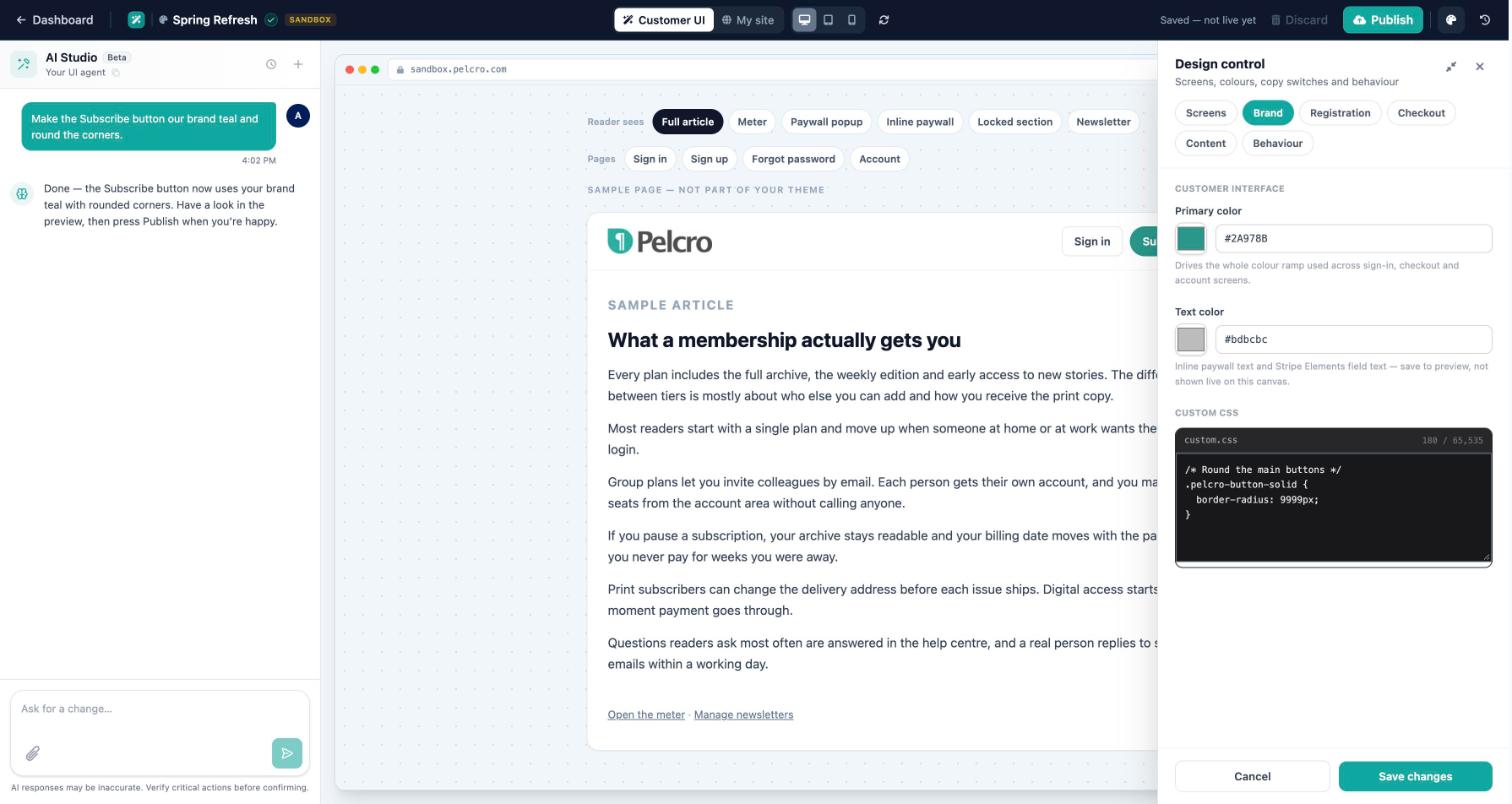
Design control: colours, custom styling and more.
Changes in Design control are different from chat changes. They apply to your live site as soon as you click Save changes. You do not need to click Publish. Changes made in chat stay in your draft until you publish them.
Publish or Discard Your Draft
Changes made in chat stay in your draft until you choose what to do with them.
- Publish — Saves your changes as the theme's latest published version. If your site uses this theme, subscribers see the changes. When publishing finishes, you'll see "Your change is live". To reverse the publish immediately, click Undo.
- Discard — Removes your unpublished changes. Your published theme stays the same.
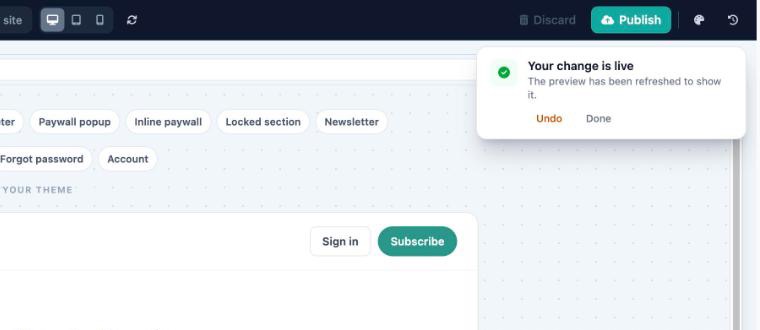
After you publish, Undo puts the previous version back.
Publish updates a theme. If your site isn't using that theme yet, click Make live to switch to it. See Make a Theme Live below.
Version History and Restore
AI Studio saves a new version each time you publish. You can return to an earlier version whenever you need to.
- Open your theme in AI Studio and click Version history.
- Choose an earlier version and click Restore this version.
- AI Studio shows the restore in progress. When it finishes, the selected version becomes the theme's published version again.
If your site is using that theme, subscribers will see the restored version.
Restoring an earlier version does not delete your newer saved work. It remains available.
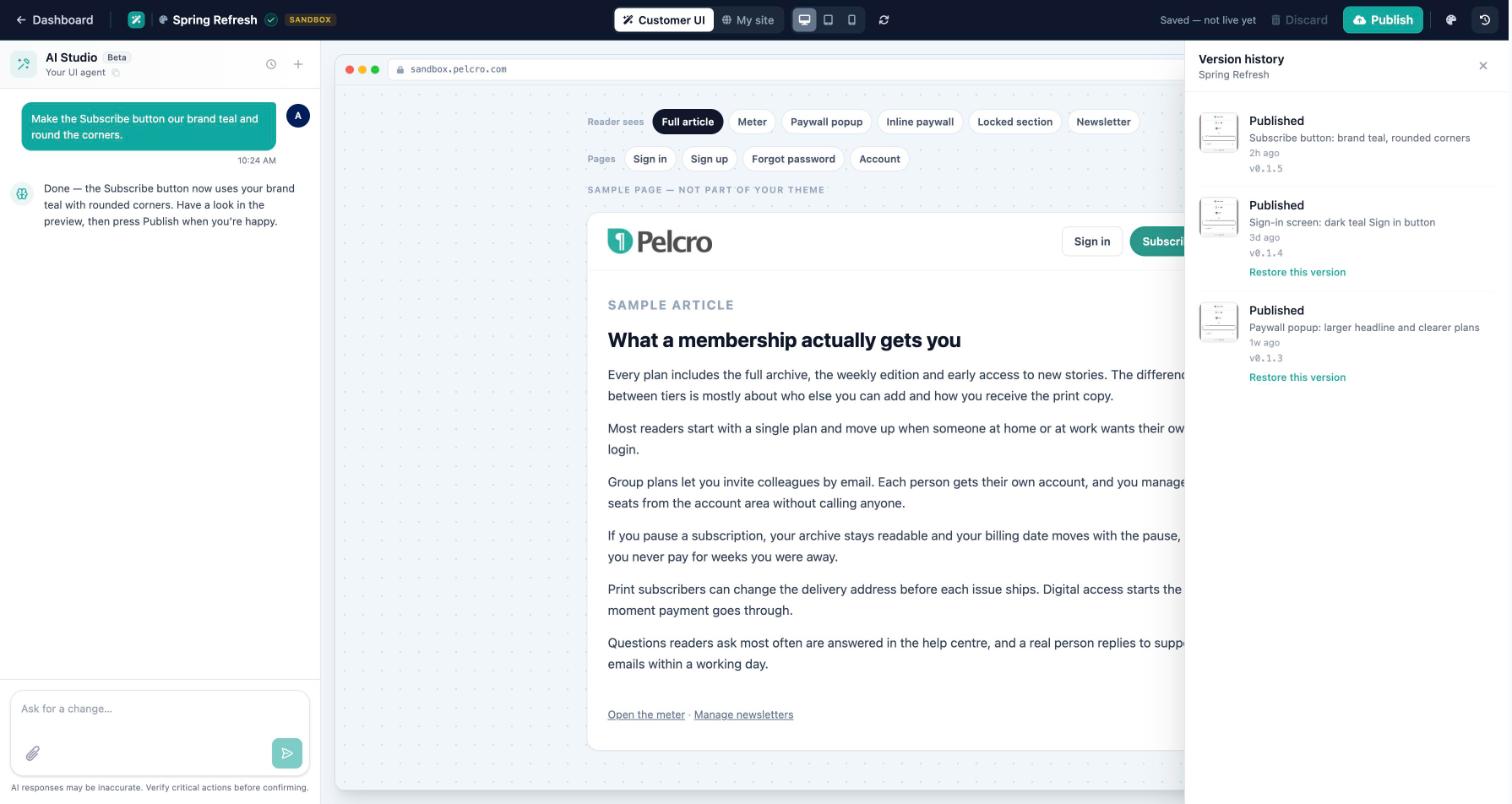
Each publish is saved. Restore any earlier version.
Widget Updates
Pelcro regularly improves the screens used in your themes.
When you start an update, AI Studio checks how it affects your theme. It shows which screens would look or work differently.
You'll then see a Widget update notice with two options:
- Apply update — Adds the update to your changes. Click Publish to make it live.
- Discard — Closes the update without applying it. Your theme stays on its current version.
Make a Theme Live
Your site can show one theme at a time.
To change which theme your subscribers see:
- Open AI Studio. Your site's current theme appears at the top. Other themes are listed under Draft themes.
- Click Make live on the theme you want to use.
- Confirm in Make this theme live?.
The selected theme replaces the Pelcro screens your subscribers currently see.
You must publish a theme at least once before you can make it live.
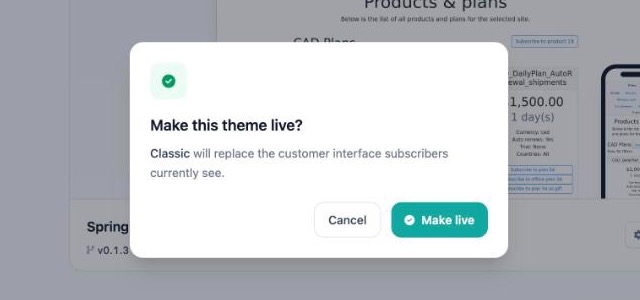
Confirm to switch the theme your subscribers see.
Use One Theme on More Than One Site
You can use the same theme on several of your sites so they share the same design.
- Find your theme and open Sites on its card.
- Add the sites you want to use this theme.
Important things to know:
- You can only add sites that belong to the same client.
- Publishing the theme updates it for every site on its list. Subscribers on a site see the change only if that site has made the theme live.
- Each site chooses whether to make the theme live.
- The site where the theme was first created always stays on the list.
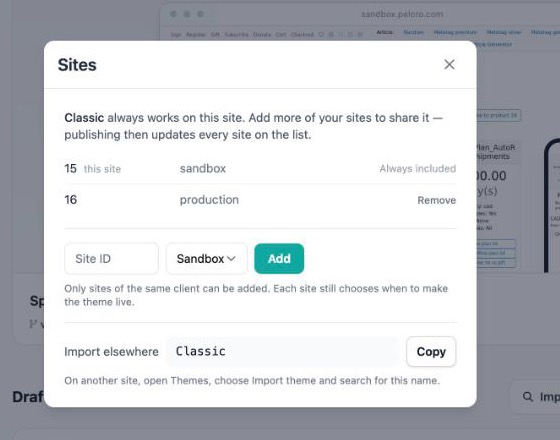
Add the sites that should share this theme.
Import a Theme
If you've already created a theme on another of your sites, you can use it here instead of starting again.
- Open AI Studio and click Import theme.
- Enter a few letters of the theme's name to find it.
- Select the theme. It opens in AI Studio, where you can edit and publish it.
Importing does not make a copy. It is the same theme, so publishing it here also updates the other sites that use it.
You can only import themes that belong to your account.
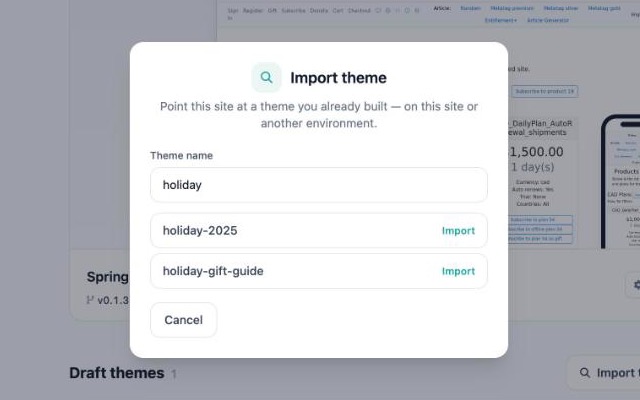
Search by name and import a theme you already built.
Install Code and Try It on Your Site
Each theme has an Install code option on its card.
Most sites don't need to install anything. If your site already uses the standard Pelcro.js code, Make live is enough to switch themes.
It provides two things:
The Pelcro.js snippet for this theme
This is the code that loads your theme on your website.
Add it just before the closing </body> tag on every page of your site. If you don't manage your website's code, you may need help from the person who does.
The code loads the latest published version of this theme. While this code is on your site, it always loads this theme, so Make live won't switch your site to another theme. Remove it to go back to using Make live.
Try it on your site
This gives you preview links that you can use with page addresses on your website.
You can preview:
- Draft — Your latest changes that haven't been published.
- Published — The latest version you've published.
Only people who open one of these links see the preview. Subscribers who visit your site normally keep seeing the current live theme, so don't share these links publicly.
You must publish a theme at least once before its installation code can load it.
FAQ
Can my subscribers see my changes before I publish?
No, not changes made in chat. They stay in your draft until you click Publish.
You can check them in the AI Studio preview or using Try it on your site.
Changes made in Design control are different. They take effect on your live site as soon as you click Save changes.
Can I undo a publish?
Yes. Click Undo immediately after publishing.
You can also use Version history to restore an earlier version later.
What happens if a change fails?
AI Studio automatically reverses the failed change. Your subscribers won't see it.
How many themes can I have?
Each site can have up to 10 themes. This includes themes created on the site and themes imported or shared to it. If you need more, contact Pelcro support.
Who can use AI Studio?
AI Studio is available to Enterprise account owners and users with the Publisher Admin or Publisher Support role.
The Pelcro AI Agent must also be enabled for their account and user access.
Updated 20 days ago