

Organizations
The Organizations feature allows you to manage customers and invoices grouped under a single organization. It provides a high-level view of organization-level balances and a streamlined workflow for reconciling multiple invoices at once.
Where to Find Organizations
Navigate to:
Organizations on the side panel.
This section gives visibility into all organizations in your account.
Organization List Page
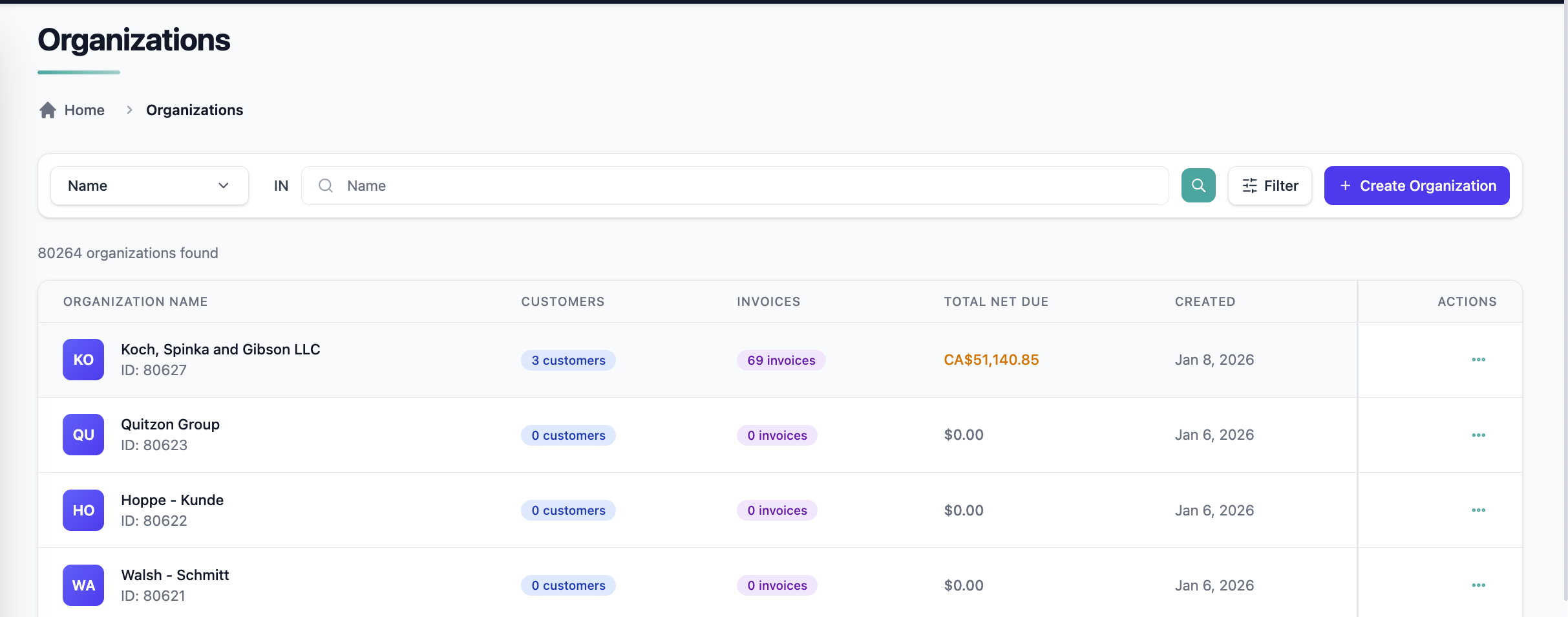
The Organizations list provides a summary view of each organization, including:
- Organization Name
- Number of Customers
- Number of Invoices
- Total Invoice Net Due (sum of all customer invoices under the organization)
Each row includes an actions menu (⋯) with quick access to:
- View Organization
- Edit Organization
This view helps teams quickly identify organizations with outstanding balances or high activity.
Organization Details Page
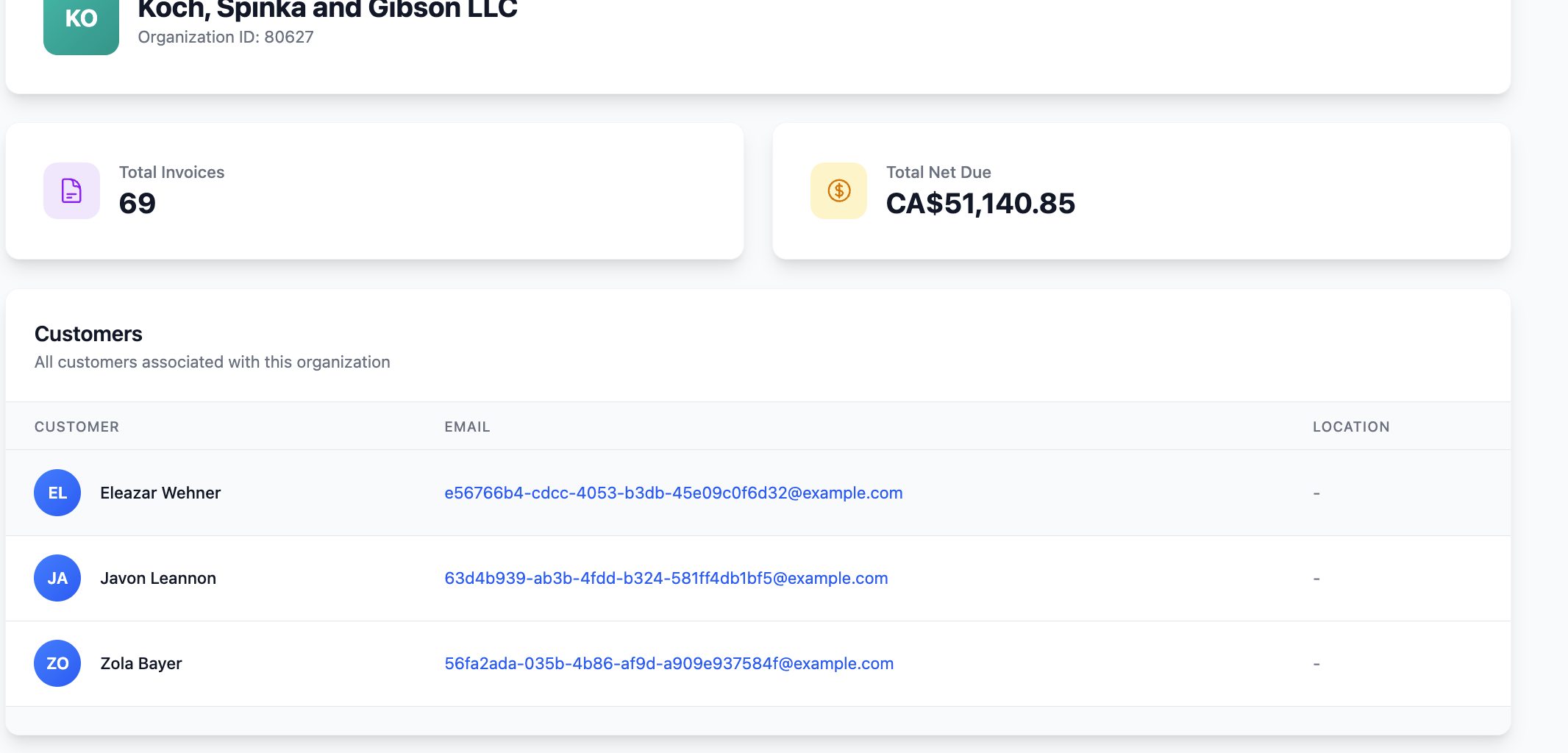
Selecting View Organization opens the organization’s details page, which includes:
Customers
A table listing all customers associated with the organization:
- Customer name
- Customer email
- Shipping address
Invoices
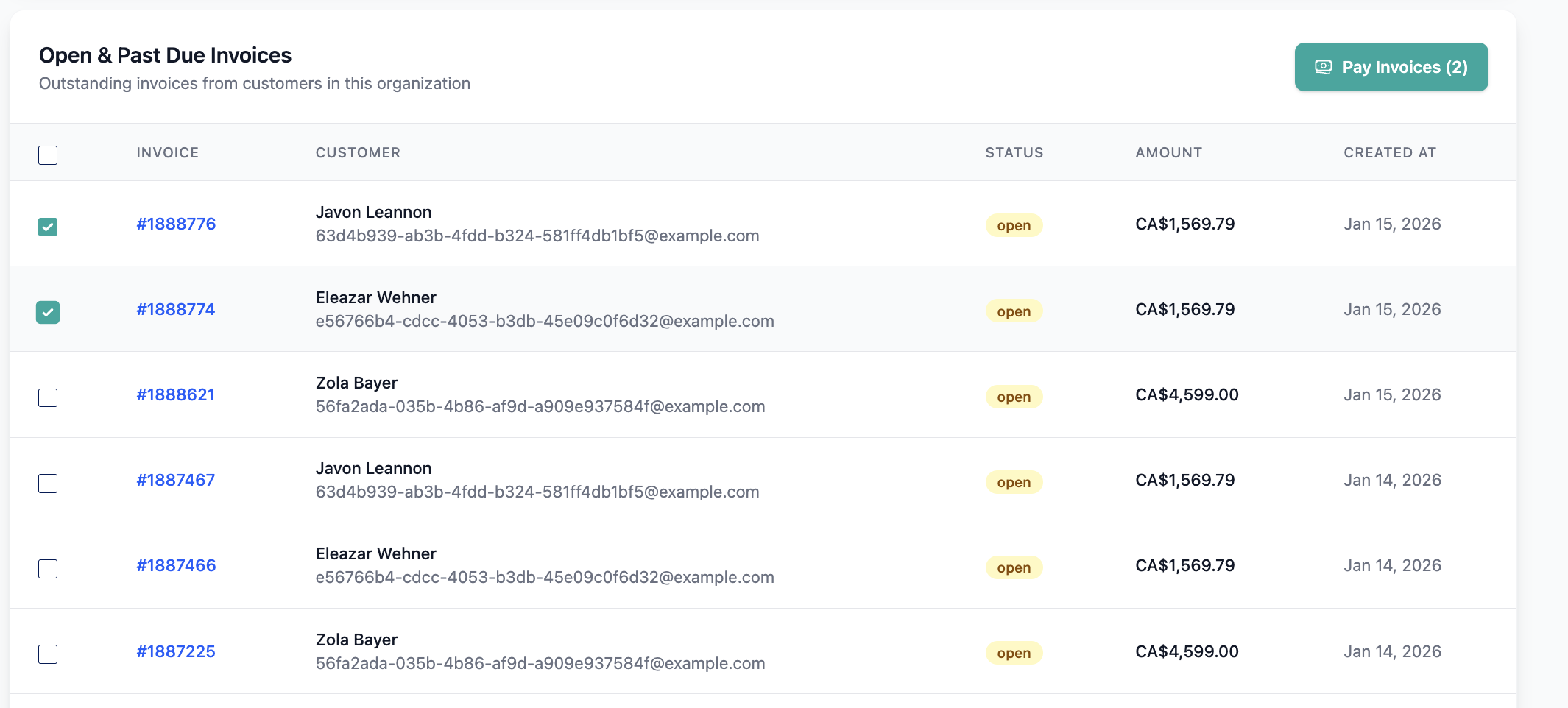
A table displaying open and past-due invoices for the organization:
- Invoice ID
- Invoice created date
- Invoice status
- Invoice amount due
Paying Multiple Invoices (Offline Payments)
When an organization has one or more unpaid invoices, a Pay Invoices action is available.
How to Pay Invoices
- Open the Organization Details page.
- Select the invoices you want to pay.
- Click Pay Invoices.
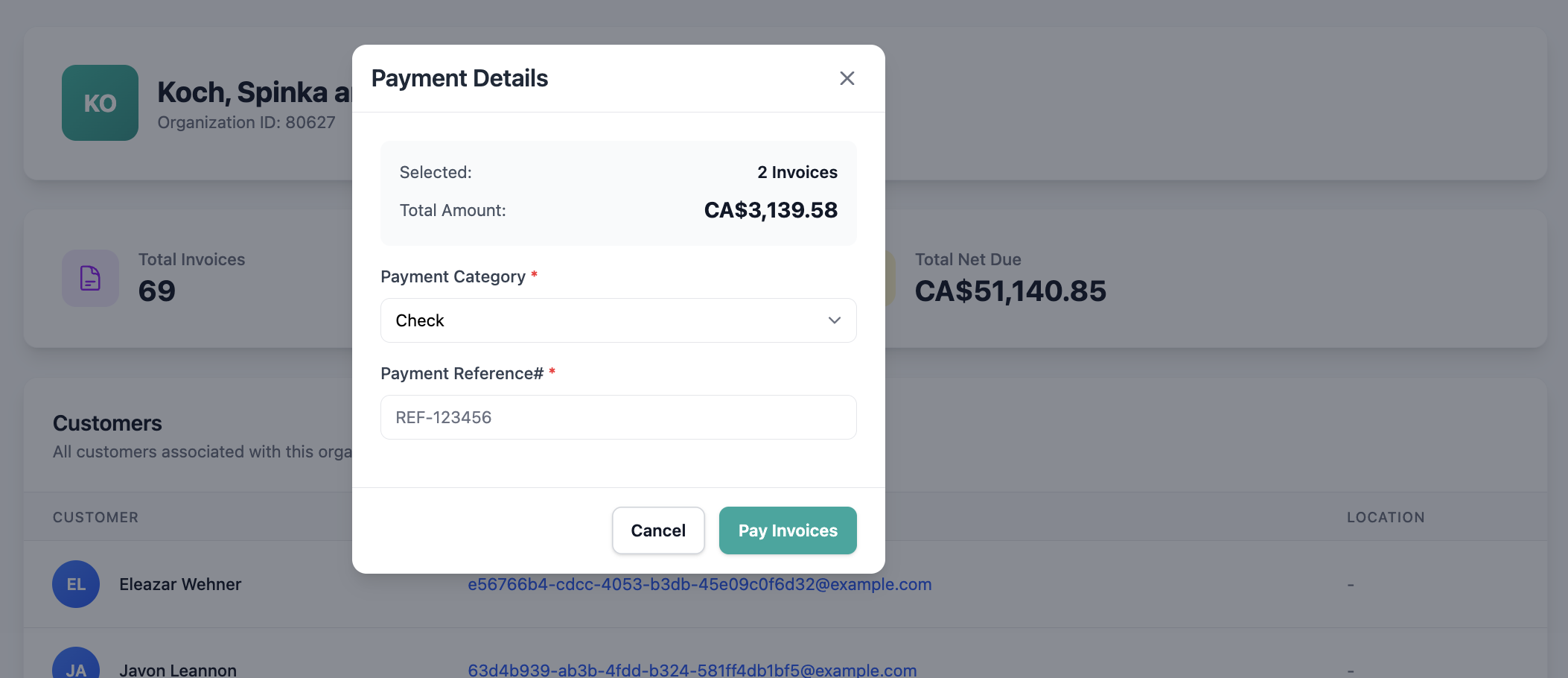
- Confirm your selection to proceed to the Offline Payment step.
Enter Offline Payment Details
Provide:
- Payment method/category (e.g., bank transfer, check, cash)
- Payment reference
Partial payments are not supported. The payment amount must fully cover all selected invoices.
What Happens After Payment
- Selected invoices are marked as paid
- Payment reference is linked to all affected invoices
- The organization’s total net due is updated
- A success confirmation is displayed
Updated 9 months ago