

Language Localization
Overview
Pelcro's multilingual functionality automatically displays products, paywalls, error messages, and other UI elements in your users' selected language.
When a user selects a language on your site, Pelcro detects the selection and renders all products, error messages, and paywalls in that language. This requires two things: localized products in the Pelcro dashboard and language tags in your site's HTML.
Pelcro currently supports French, English, Italian, Spanish, and Korean. Contact support for additional languages — you will need to provide full language transcripts for both frontend and backend.
How Language Detection Works
Pelcro reads the language tag set on your site's <html> element (e.g., <html lang="fr">) and matches it against your configured products. All UI elements — product names, descriptions, paywalls, and error messages — render in the detected language.
Setting Up Localized Products
- Create a new product in the Pelcro dashboard.
- Select the language the product is available in.
- Enter the product name, description, and nickname in the selected language.
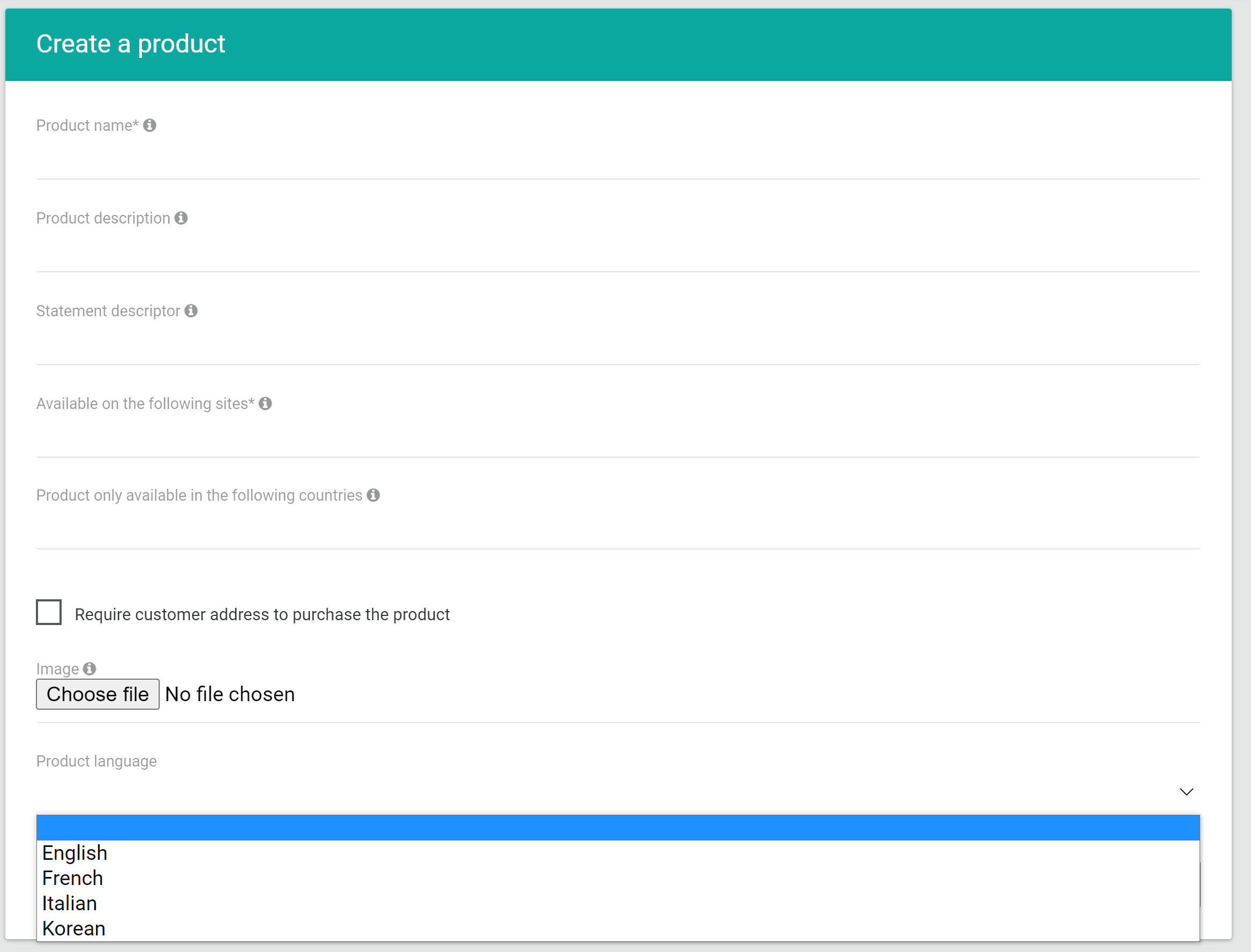
Repeat these steps for each language you want to support. Each language requires its own product entry with fully translated content.
Configuring Language Tags on Your Site
Add the appropriate language tag to the <html> element on your site. For example, to set the language to French:
<html lang="fr">Pelcro uses this tag to determine which localized products and messages to display.
Troubleshooting
Products display in the wrong language
Verify that the lang attribute on your <html> tag matches the language code you selected when creating the product in Pelcro. For example, French requires lang="fr", not lang="french".
Error messages are not translated
Error message translations are managed by Pelcro. If you see untranslated error messages, confirm that your language is one of the supported options (English, French, Italian, Spanish, Korean). For other languages, contact support with full frontend and backend language transcripts.
Product name or description appears blank
Each localized product must have its name, description, and nickname filled in for the selected language. Open the product in the Pelcro dashboard and confirm all fields are populated.
Next Steps
- Request a new language — Contact Pelcro support with your full language transcripts for both frontend and backend strings.
- HTML language codes — See the full list of language codes to find the correct tag for your audience.
Updated 8 months ago