

AI Agent (New)
Overview
The Pelcro AI Agent is a conversational assistant built into your publisher dashboard. Ask questions about your data, run bulk operations, and manage records in plain English — no SQL, no exports, no manual filtering.
It is powered by Claude (Amazon Bedrock) and has direct, verified access to your full Pelcro account — customers, subscriptions, invoices, charges, and more.
What Is It?
The AI Agent is a chat panel built into every page of your dashboard. You type a request, the agent calls the Pelcro API in real time, and it returns the result as a table, chart, summary card, or confirmation card — depending on what you asked for.
It does not estimate or fabricate data. Every number it shows comes from a live API call.
Account & Collaborator Permissions
The AI Agent is disabled by default at the account level. The account owner controls both whether the agent is available on the account and which collaborators on the team can use it.
Enabling the AI Agent for Your Account
The first time the account owner accesses the AI Agent, a consent prompt appears:
"Do you want Pelcro's AI Agent to access your data?"
The agent remains disabled for the entire account — including the account owner — until consent is explicitly granted. Owners who decline initially can re-enable the agent later from the same flow.
Managing Collaborator Access
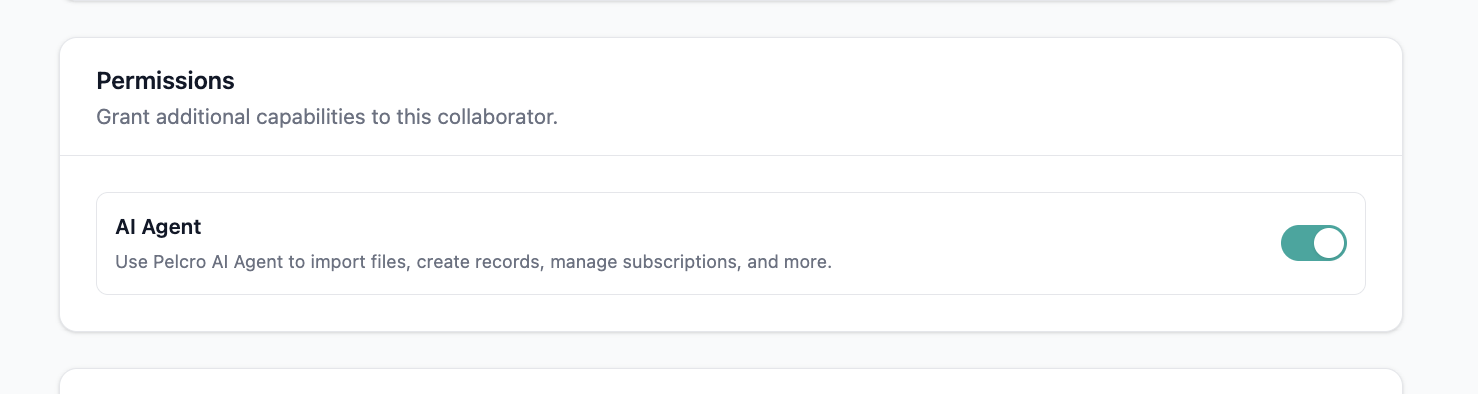
Once the AI Agent is enabled at the account level, access is controlled per collaborator from Settings > Collaborators.
Default permissions after account-level enablement:
- Account owner — enabled
- All other collaborators — disabled
The account owner can toggle AI Agent access for each collaborator individually. The toggle is visible to all collaborators but can only be edited by the account owner.
What Collaborators See
A collaborator with permission uses the agent normally.
A collaborator without permission still sees the AI Agent panel in the dashboard, but any message they send returns:
"Please ask your account owner to enable this feature for you."
This keeps the path to enablement visible and obvious — collaborators know the feature exists and who to contact.
When Permissions Change
- Toggling a collaborator's access takes effect on their next interaction — no re-login required
- If a collaborator's access is revoked mid-session while they have an open AI Agent chat, subsequent messages in that session will return the gated message
Note: Only the account owner can enable the AI Agent at the account level or manage per-collaborator access. Other admin roles do not have access to these controls.
How to Use It
- Open any page in your Pelcro dashboard
- Click the teal chat icon in the bottom-right corner
- Type your request in plain language
- Review the response — table, chart, summary card, or confirmation card
- For any write or bulk action, click Approve to execute or Cancel to stop
How Does the Agent Work?
When you send a message, the agent follows this pipeline:
- Understands your intent — parses your request into a structured action (read, write, bulk, import, analyze)
- Identifies the target — determines which resource (customers, subscriptions, invoices, charges) and which filters apply
- Reads your context — checks your current page URL to automatically identify which record you are viewing
- Calls the Pelcro API — executes one or more API calls to fetch or act on your data
- Renders the result — formats the output as a table, chart, card, or raw data view
- Waits for your approval — for any write, bulk, or financial action, it shows a confirmation card and pauses until you explicitly approve
What Triggers the Agent?
The agent is triggered by your typed message in the chat panel. There is no automation, no scheduling, and no background activation.
- Text message → the agent processes your request immediately
- File upload (CSV / XLS / XLSX) → triggers an import flow with column mapping and confirmation before importing
- Page navigation → the agent passively reads your current URL so it can identify context when you ask follow-up questions
Opening the Agent
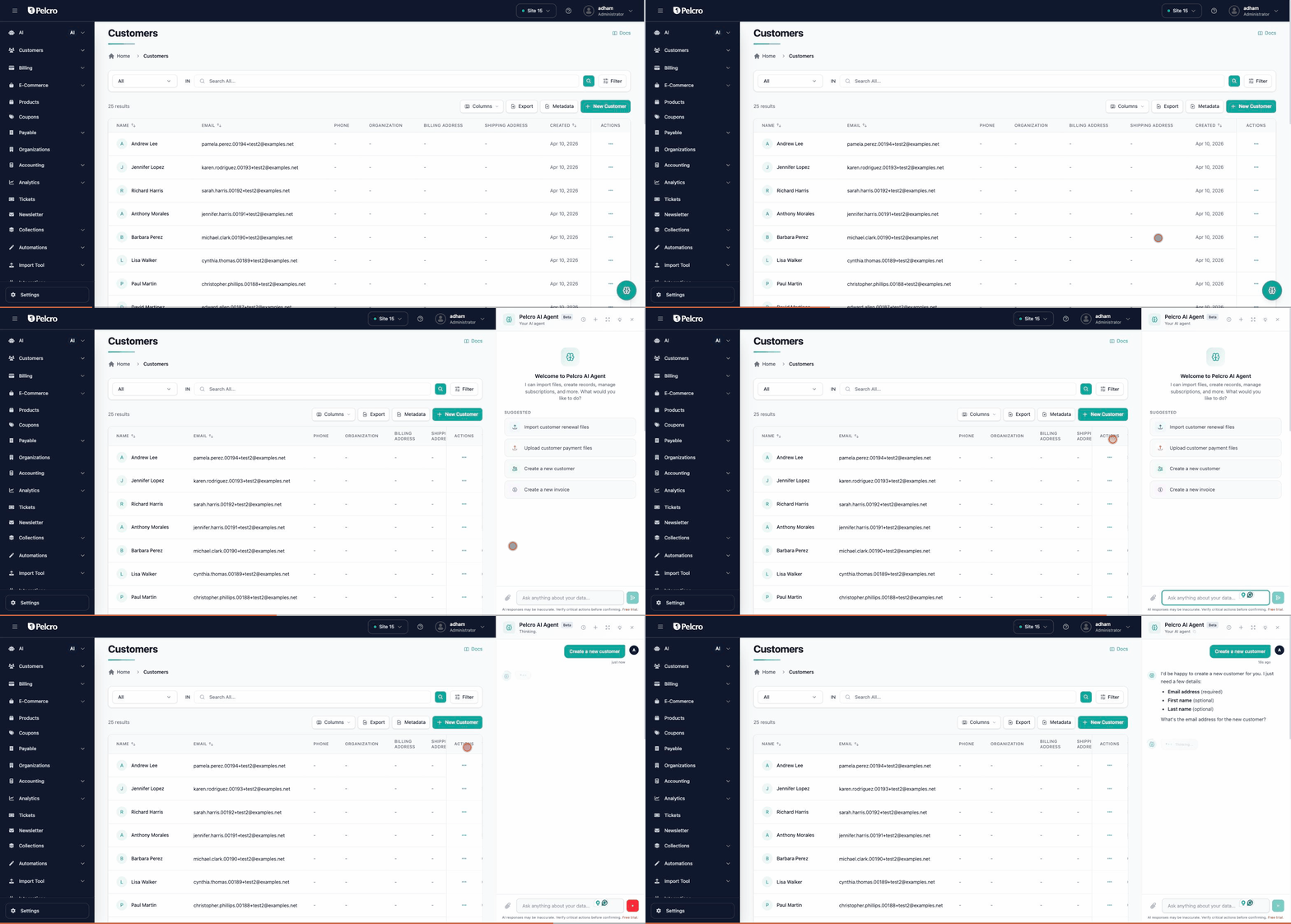
Click the teal chat icon in the bottom-right corner of any page in your dashboard. The panel slides open and the agent is ready immediately.
The agent works on every page. It reads your current page URL and automatically knows which customer, subscription, or invoice you are viewing.
[gif: opening the agent panel — click the teal icon, panel slides open with welcome screen]
What You Can Ask
Query and explore your data
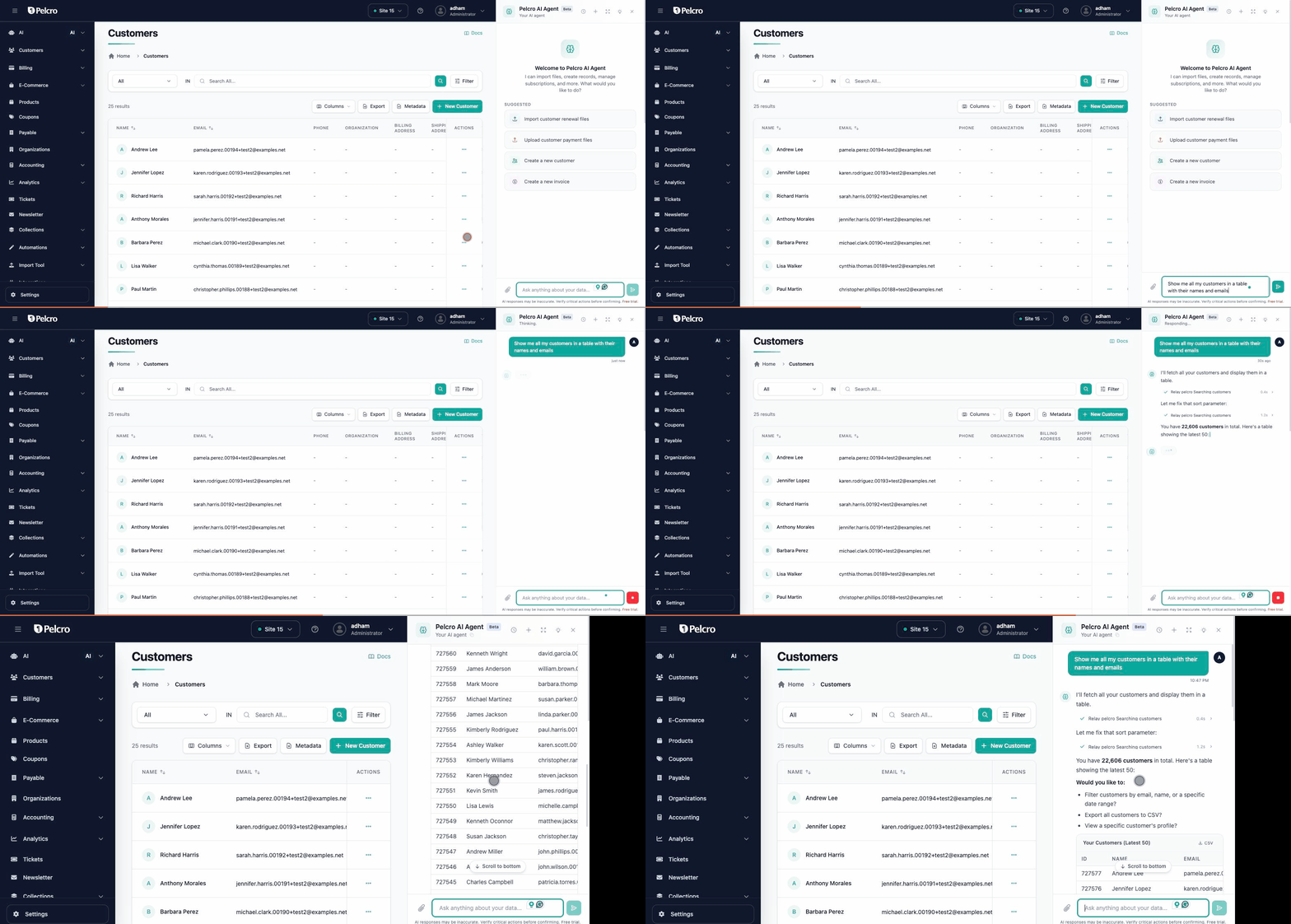
Ask the agent to fetch, filter, and display your data as a live table.
Example prompts:
- "Show me all customers created this month in a table with their name and email"
- "List my top 10 subscriptions by revenue"
- "Find all invoices with status past_due from the last 30 days"
Analyze with charts
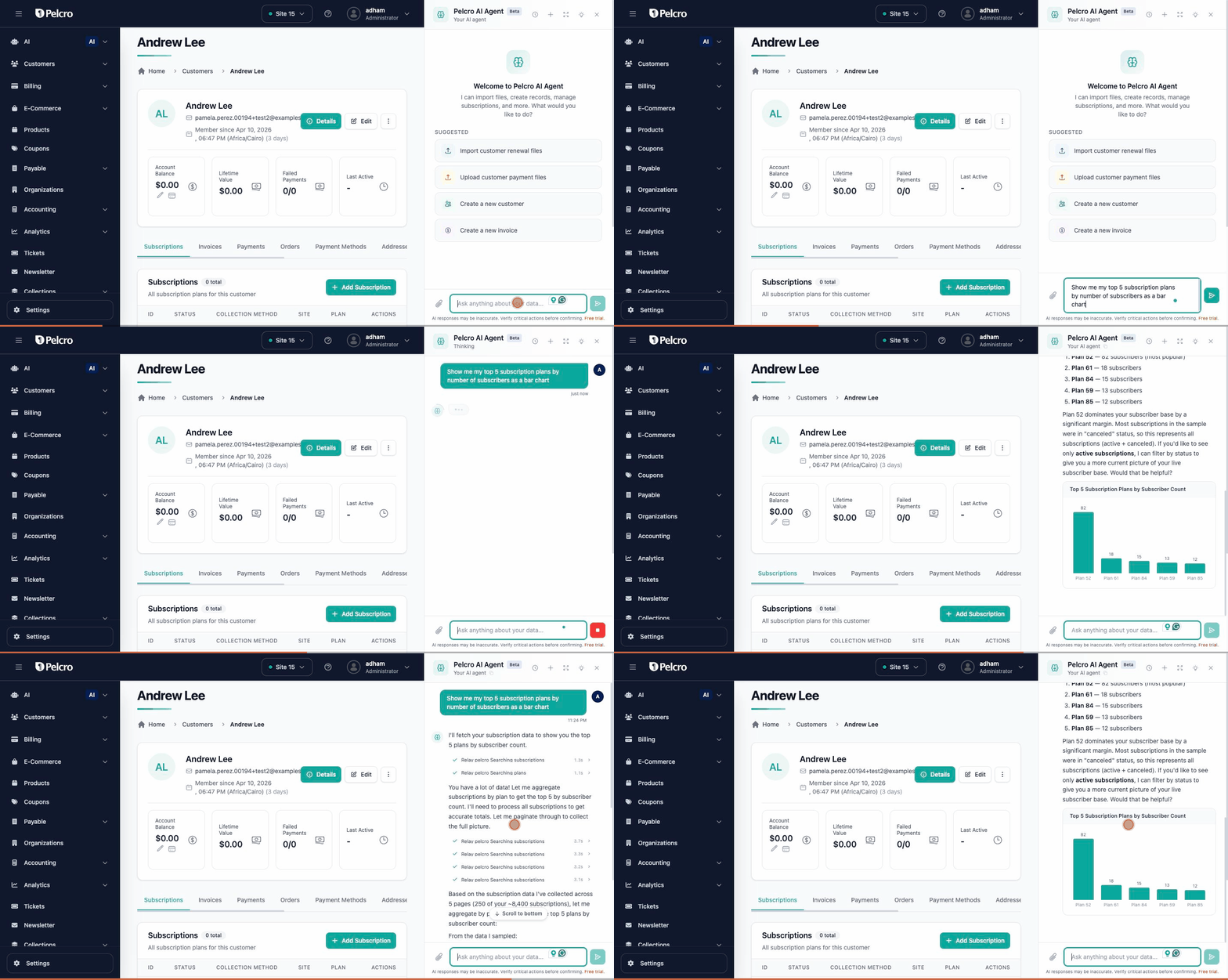
Ask for charts and the agent renders bar, pie, donut, or horizontal-bar visualizations with a written summary of what the data shows.
Example prompts:
- "Show me my top 5 subscription plans by number of subscribers as a bar chart"
- "Give me a pie chart of revenue by product for this quarter"
- "What does my subscription churn look like over the last 6 months?"
Run bulk operations
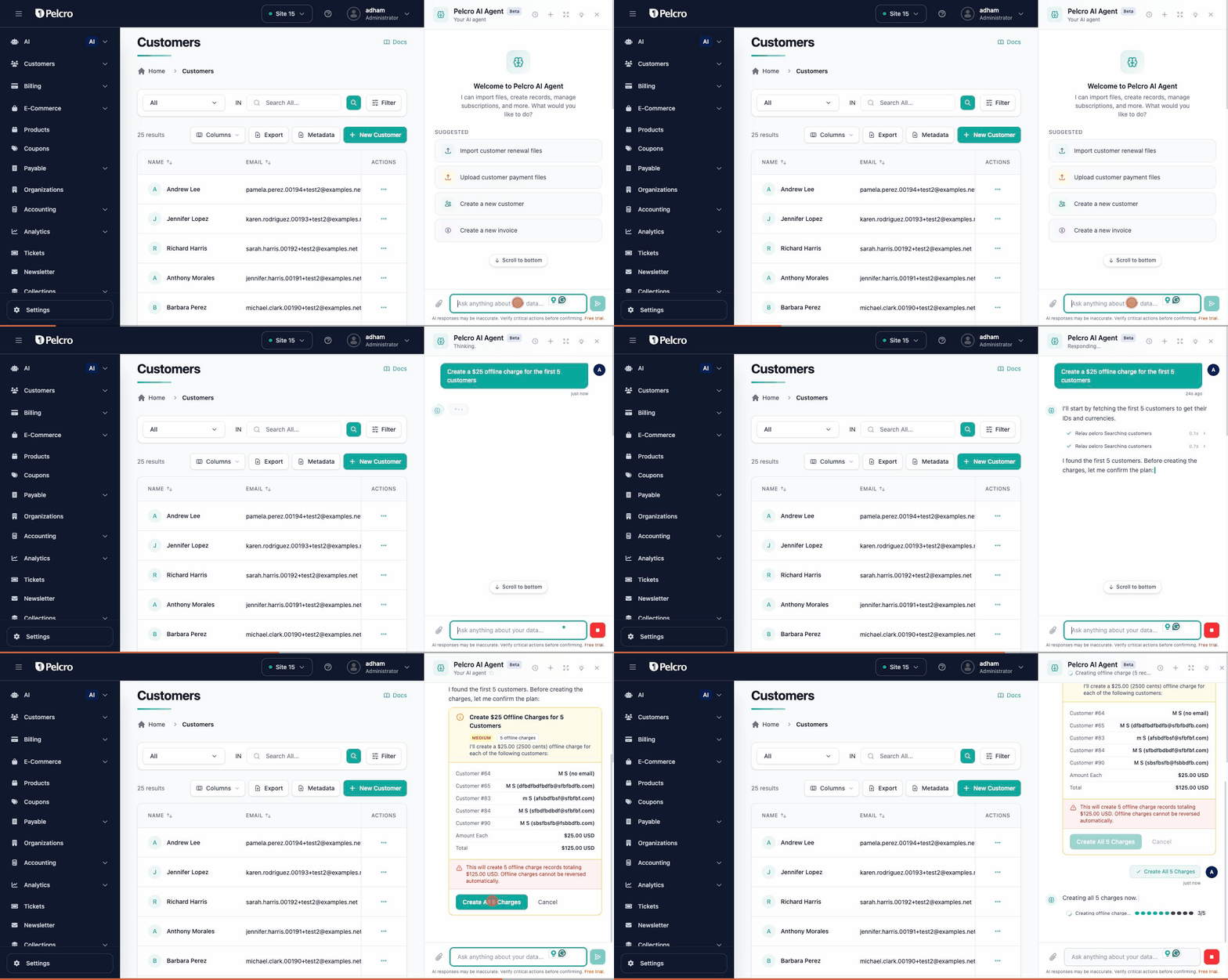
Run actions across hundreds or thousands of records in one instruction. The agent finds the matching records, shows you exactly what will happen, and waits for your approval before touching anything.
Supported bulk operations include: creating charges, cancelling subscriptions, updating customer metadata, and more.
Example prompts:
- "Create a $25 offline charge for all customers tagged 'renewal-2026'"
- "Cancel all free-trial subscriptions that have been inactive for 60 days"
- "Add metadata key 'segment' with value 'enterprise' to all customers in organization 42"
Maximum batch size is 3,000 records. For larger datasets, split your request into multiple operations using filters.
Import files
Upload a CSV, XLS, or XLSX file directly in the agent panel to import customers, subscriptions, or other records in bulk.
- Supported formats: CSV, XLS, XLSX
- Maximum: 3,000 rows per import
- The agent maps your columns, previews the data, and asks for confirmation before importing
- If you close the panel during import, the import stops. Reopen the panel and start again from the beginning if needed.
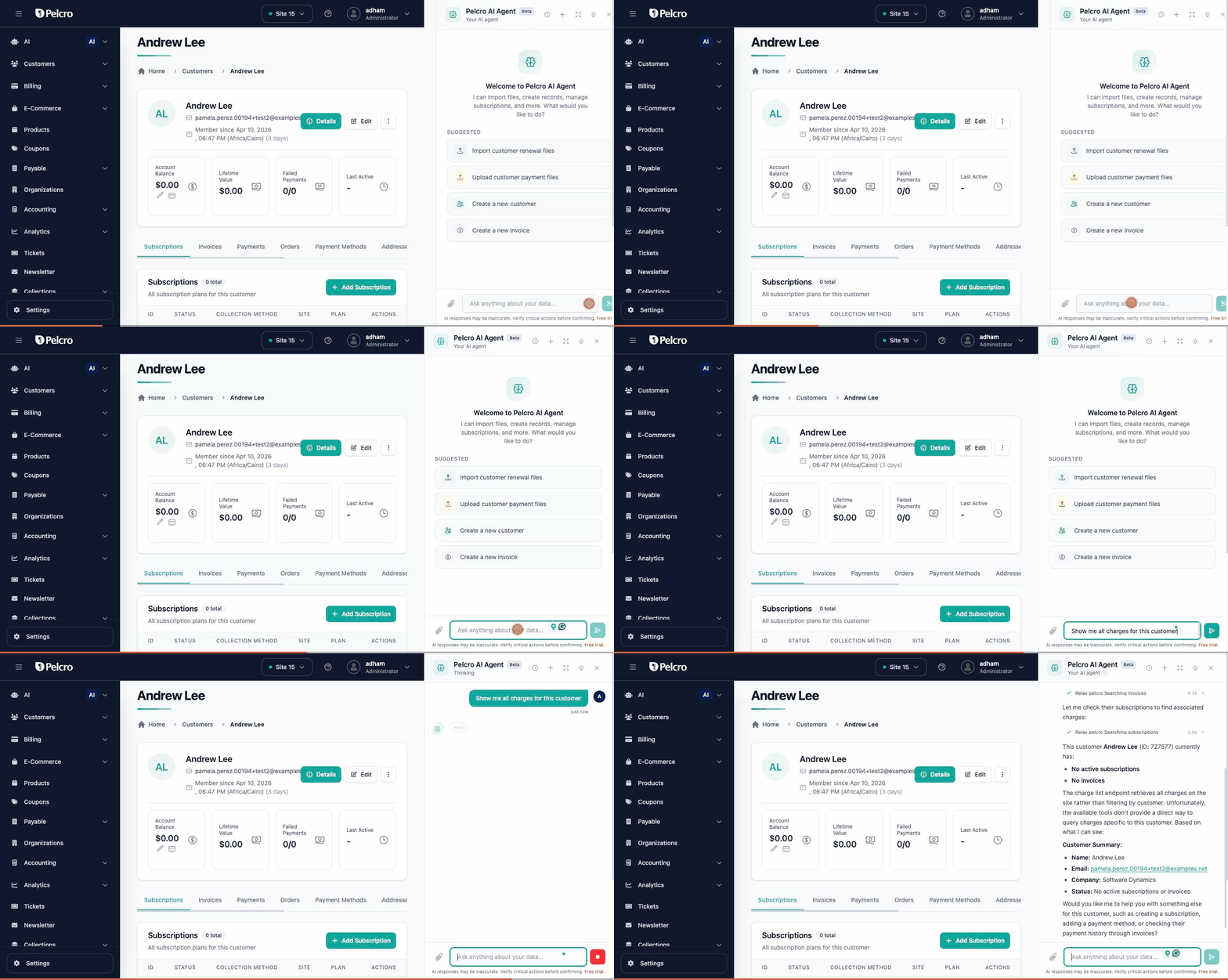
Ask about a specific record
When you are already viewing a customer, subscription, or invoice page, ask about it without typing any ID. The agent reads your current URL and passes the context automatically.
Example prompts (while viewing a customer page):
- "Show me all charges for this customer"
- "What subscriptions does this customer have?"
- "Create a $15 offline charge for this customer"
Approval Flows
Every write operation — bulk or single — goes through a confirmation step before any data is changed.
The agent presents a confirmation card that shows:
- Severity level — Low / Medium / High / Critical
- Impact summary — how many records, what will change
- Preview — a sample of the affected records
- Approve / Cancel buttons
The agent will never modify, delete, or charge any data until you click Approve.
Context Awareness
The agent knows where you are in the dashboard at all times. When you open the panel on a customer page, it automatically recognizes that customer. On a subscription page, it recognizes that subscription. You do not need to type IDs or copy-paste anything.
- "Renew this subscription" — the agent knows which one.
- "Show me all invoices for this customer" — the agent knows which customer.
AI Agent Skills
Skills let you save reusable rules and business processes so the AI Agent follows them automatically, without you re-explaining them in every conversation. Save your report definitions, naming conventions, or step-by-step processes once, and every new conversation starts with them already in place.
How it Works
- Skills are saved at the site level, not per user
- When a new AI Agent conversation starts on a site, the agent applies that site's saved skills automatically
- Every team member using the AI Agent on the site sees and uses the same skills, so recurring reports and processes run the same way no matter who runs them
> 📘 When to Create a Skill
>
> If you find yourself typing the same instructions at the start of every conversation (for example, how you define an active subscriber, which columns a weekly report should include, or the steps your team follows for a recurring task), save them as a skill.
Creating a Skill
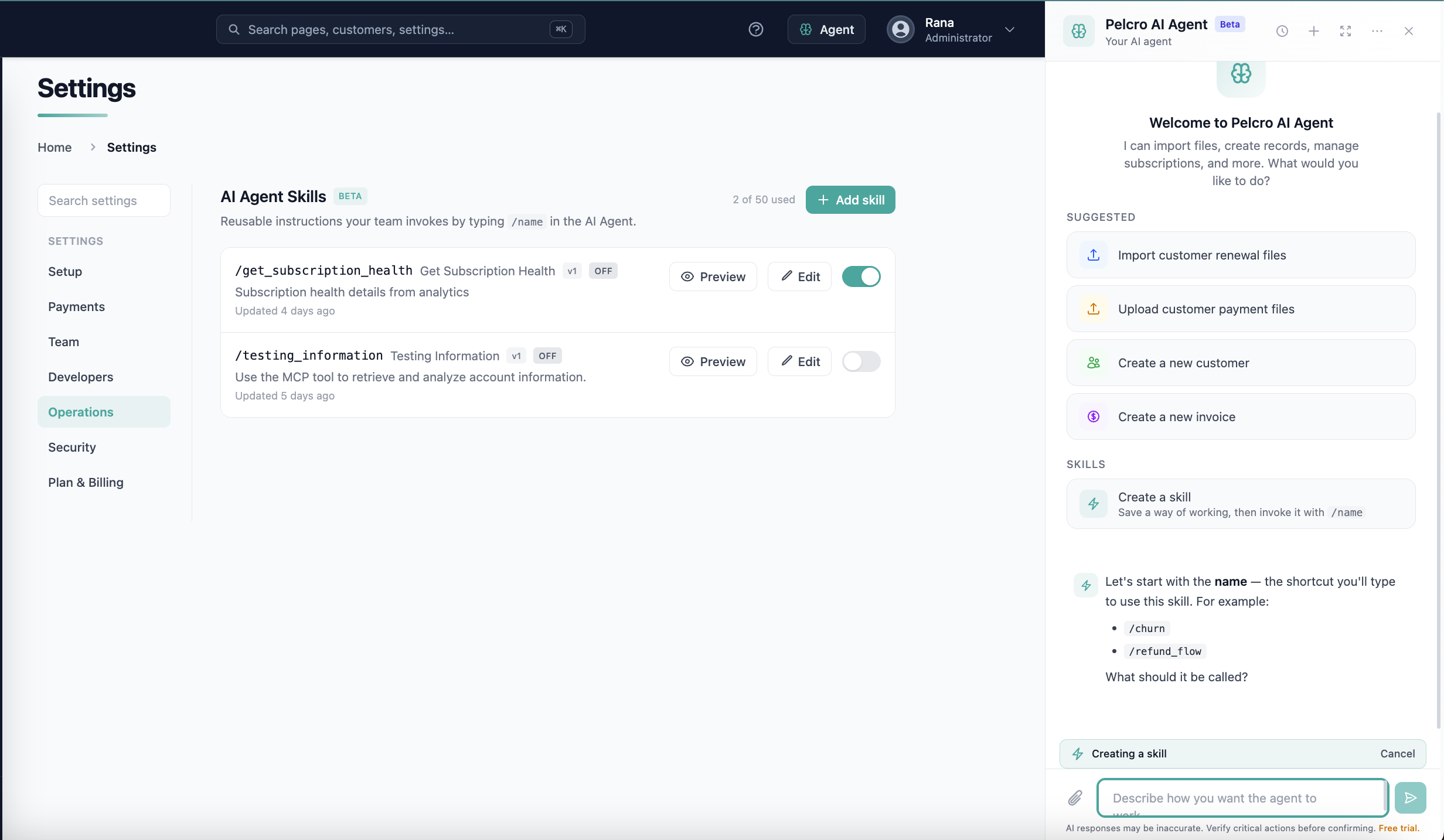
You can create a skill from either of two places:
From Settings
1. Go to Settings > Operations > AI Agent Skills.
2. Click Create skill
3. Enter the rules or process you want the agent to follow, then save.
From the AI Agent chat
1. Click the teal chat icon in the bottom-right corner of any page to open the AI Agent.
2. Click Create skill.
3. Enter the rules or process you want the agent to follow, then save.
Once saved, the skill applies to every new conversation on the site.
Example Skills
- "When I ask for a weekly churn report, include canceled and expired subscriptions from Monday to Sunday of the previous week, grouped by plan."
- "Always show customer tables with name, email, and customer ID columns."
- "Treat any subscription with status 'trialing' as a trial, not an active subscriber, in all counts."
Rules and Limitations
- Skills are shared across the site. Any change affects every team member who uses the AI Agent on that site.
- Skills apply when a new conversation starts. Conversations that are already open are not updated.
- Skills do not change approval flows. Write and bulk actions still require you to click Approve.
What Is the Format of the Input?
The agent accepts two input types:
1. Natural language text
Plain English. No special syntax. The agent handles questions, commands, analysis requests, bulk instructions, and contextual references:
- "How many customers signed up last month?"
- "Cancel the subscription for customer 98765"
- "Show me revenue by plan as a pie chart"
- "Create a $10 charge for all customers with tag 'promo'"
- "Show me all invoices for this customer" (when already on a customer page)
2. File upload
Drag or attach a file directly in the chat panel.
| Format | Extension | Max rows |
|---|---|---|
| CSV | .csv | 3,000 |
| Excel | .xls | 3,000 |
| Excel (modern) | .xlsx | 3,000 |
| Text (TSV/CSV) | .txt | 3,000 |
The agent will parse the file, map your columns to Pelcro fields, show a preview of the first rows, and ask for confirmation before importing.
Column headers in your file do not need to match Pelcro field names exactly. The agent infers the mapping — review the preview carefully before approving.
What Is the Output Format?
The agent always returns a structured response. The output type depends on what you asked for:
- Table — rows and columns pulled live from the API, with total record count and pagination info
- Bar / Pie / Donut / Horizontal-bar chart — labeled data points rendered as an interactive chart, plus a written insight summary
- Summary cards — key metrics shown as individual stat tiles (e.g. Total Customers, MRR, Active Subscriptions)
- Confirmation card — for any write or bulk action: severity level, impact summary, record preview, and Approve / Cancel buttons
- Raw data view — structured key-value output for single-record lookups
Every output includes the source data from the Pelcro API. The agent does not summarize or estimate — what you see is what the API returned.
What Is the Current Measured Accuracy Rate?
Accuracy varies by task type:
| Task type | Expected accuracy |
|---|---|
| Read queries (list, filter, search) | Very high — direct API calls, no inference |
| Single-record lookups | Very high — deterministic |
| Bulk operations with clear filters | High — agent confirms count before executing |
| Chart and analytics generation | High — data is real, visualization is rendered from it |
| Ambiguous or multi-step requests | Moderate — agent may ask a clarifying question |
| File imports with non-standard column names | Moderate — agent maps columns but may misalign edge cases |
We are tracking accuracy continuously and will publish metrics as we gather more publisher data.
Limitations
- Maximum 3,000 records per bulk operation or file import
- File imports stop when you close the panel — keep the panel open until the import finishes
- No multi-step transactions in one request — "cancel subscription and refund the last invoice" must be two separate requests
- No external integrations — the agent cannot send emails, trigger webhooks, or push to third-party systems
- No memory between sessions — each time you open the panel, the agent starts fresh
- Accuracy is lower on ambiguous prompts — be specific about filters, date ranges, and record counts
Tips for Best Results
- Be specific about filters — instead of "show me all customers," try "show me customers created in March 2026 with an active subscription"
- Ask for the format you want — say "as a table," "as a bar chart," or "as a summary card"
- Use context when you can — navigate to the record first, then ask — it saves time and avoids typos
- Approve carefully on bulk operations — review the preview before clicking Approve; some actions cannot be undone
- Split large datasets — if you have more than 3,000 records, add a filter to break it into smaller batches
FAQ
Can the agent make mistakes? Yes. Always review the confirmation card before approving any bulk or write operation. For critical actions (charges, cancellations), check the record count and preview carefully.
Does the agent have access to all my data? The agent has the same access as your dashboard user. It cannot access data from sites or accounts you do not have permission to view.
What happens if I close the panel mid-import? Bulk import is an async process, which will continue processing once dispatched, closing the chat has no affect.
Can I undo a bulk operation? Some operations are reversible (e.g., you can refund a charge). Others are not. Always review the confirmation card — it indicates whether the action is reversible.
Is the agent available on all plans? The AI Agent is available on selected Pelcro plans. Contact to sales if you do not see the chat icon in your dashboard.
Updated 15 days ago