
Accounting
Understand your accounting reports, navigate the dashboard, export data, and reconcile balances with clear examples.
Use this guide to understand the Accounting report, navigate the dashboard, export data, and reconcile balances with the supporting visuals from the legacy page.
Available for Professional & Enterprise Plans.
Watch the Walkthrough
How to Use This Documentation
This documentation is organized by transaction type (rows in the report). Each page explains:
- What the transaction represents
- Which accounting categories it affects (columns)
- Exactly what logic determines the numbers you see
- Real-world examples with dollar amounts
Understanding the Report Structure
What are Rows?
Each row represents a specific business event or transaction type:
- When you create an invoice → Subscriptions Revenue or eCommerce Revenue
- When a customer pays → Payments Received
- When you issue a refund → Refunds Made
- When you recognize earned revenue → Recognized Revenue
What are Columns?
Each column represents an accounting category that tracks different aspects of your financials:
| Column | What It Tracks | Type |
|---|---|---|
| Cash - Offline Payments | Checks, wire transfers, cash | Asset |
| Cash - Online Payments | Credit cards, PayPal, Stripe | Asset |
| Customer Balance | Prepaid credits, account balance | Asset/Liability |
| Account Receivable | Money customers owe (invoiced) | Asset |
| Deferred Revenue | Service not yet delivered | Liability |
| Taxes | Sales tax collected | Liability |
| Recognized Revenue | Revenue earned and recognized | Income |
How They Work Together
When a transaction occurs (row), it affects multiple accounting categories (columns). For example:
When you create a $110 subscription invoice ($100 + $10 tax):
- Account Receivable: +$110 (customer owes this)
- Deferred Revenue: -$100 (service obligation)
- Taxes: -$10 (tax liability)
- Balance: $110 - $100 - $10 = $0 ✓
This ensures your books balance - every transaction has equal and opposite effects.
Report Timeframe
All reports show activity for a specific month and currency:
- Transactions appear based on their creation date, not payment date
- Each currency has a separate report (USD, EUR, CAD, etc.)
- Opening and closing balances connect months together
Use the Dashboard
- Open your dashboard, hover over the left navigation menu, and select Accounting.
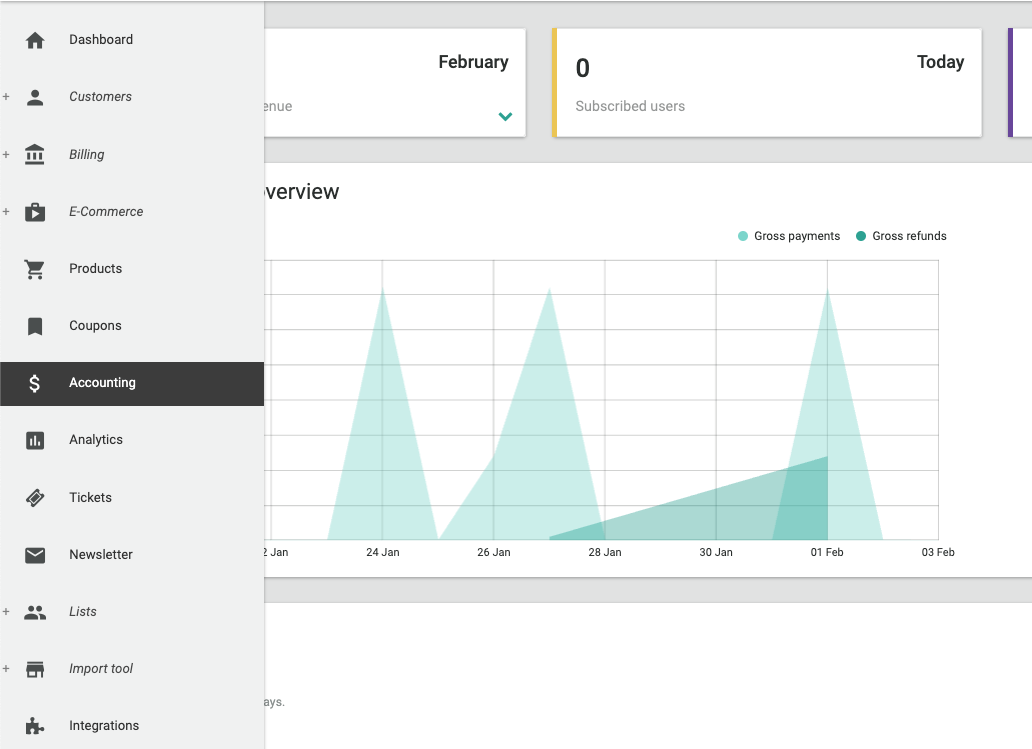
- Select the month you want to review.

The period selector controls which month appears in the report.
- Select the currency you want to review.

If you sell in multiple currencies, Pelcro separates the report by currency so you can review each one independently.
Accounting Sections
Transactions that create new revenue obligations when you bill customers.
Transaction Types:
- Subscriptions Revenue - Recurring subscription invoices
- eCommerce Revenue - One-time product purchases
Affects: Account Receivable, Deferred Revenue, Taxes
How deferred revenue becomes earned revenue as you deliver services and products to customers over time.
Transaction Types:
- Recognized Revenue - Time - Revenue recognized based on time elapsed
- Recognized Revenue - Shipments - Revenue recognized when issues are delivered
- Recognized Revenue - eCommerce - Revenue recognized upon order fulfillment
Affects: Deferred Revenue, Recognized Revenue
Money flowing in and out - customer payments received and refunds issued.
Transaction Types:
- Payments Received - Customer payments applied to invoices
- Refunds Made - Money returned to customers
Affects: Cash, Customer Balance, Account Receivable, Deferred Revenue
Corrections, write-offs, and balance applications - handling special cases and exceptions.
Transaction Types:
- Applied Balance - Customer account balance applied to invoices
- Uncollectible Invoices - Invoices written off as bad debt
- Voided Invoices - Invoices canceled before payment
- Credit Notes - Credits issued to customers
Affects: Customer Balance, Account Receivable, Deferred Revenue, Taxes, Recognized Revenue
Special handling for agency-type subscriptions where you act as an intermediary.
Transaction Types:
- Agency Commission Revenue - Agency subscription revenue (commission portion)
- Agency Commission Recognized - Agency commission recognized over time
Affects: Deferred Revenue, Cash, Taxes, Recognized Revenue
Quick Reference Table
| Row | When It Appears | Primary Columns Affected |
|---|---|---|
| Subscriptions Revenue | Invoice created | AR (+), DR (-), Taxes (-) |
| eCommerce Revenue | Order invoice created | AR (+), DR (-), Taxes (-) |
| Recognized Revenue - Time | Monthly recognition | DR (+), RR (-) |
| Recognized Revenue - Shipments | Issue shipped | DR (+), RR (-) |
| Recognized Revenue - eCommerce | Order fulfilled | DR (+), RR (-) |
| Payments Received | Customer pays | Cash (+), AR (-) |
| Applied Balance | Balance used | CB (-), AR (-) |
| Refunds Made | Refund issued | Cash (-), DR (+) |
| Uncollectible Invoices | Marked uncollectible | AR (-), DR (+) |
| Voided Invoices | Invoice voided | AR (-), DR (+) |
| Credit Notes | Credit issued | CB (+), DR (+) |
Legend:
- AR = Account Receivable
- DR = Deferred Revenue
- RR = Recognized Revenue
- CB = Customer Balance
- (+) = Increases (makes more positive or less negative)
- (-) = Decreases (makes more negative or less positive)
Read the Dashboard
Layout
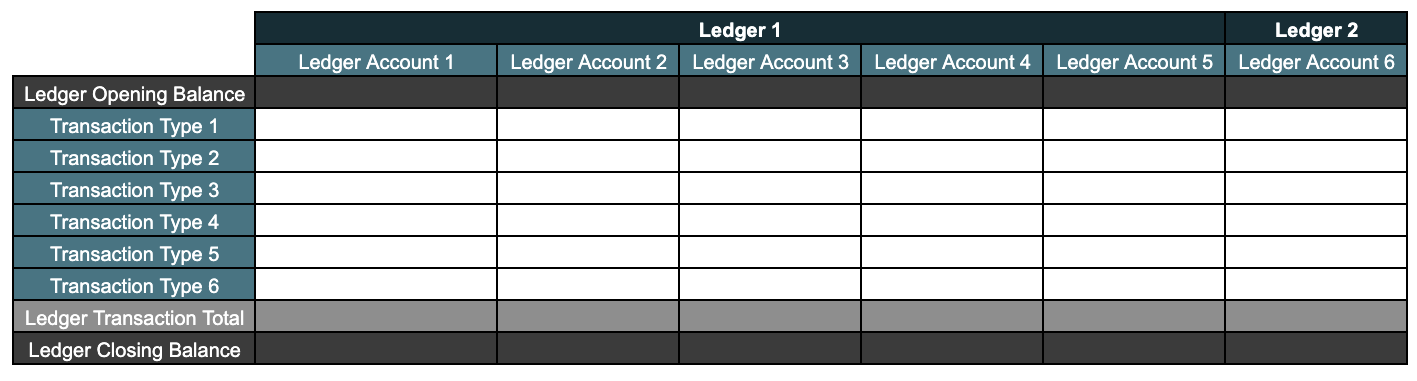
- Each column represents a ledger account.
- Each row represents a transaction type that increases or decreases one or more ledger accounts.
Balance Sheet Accounts
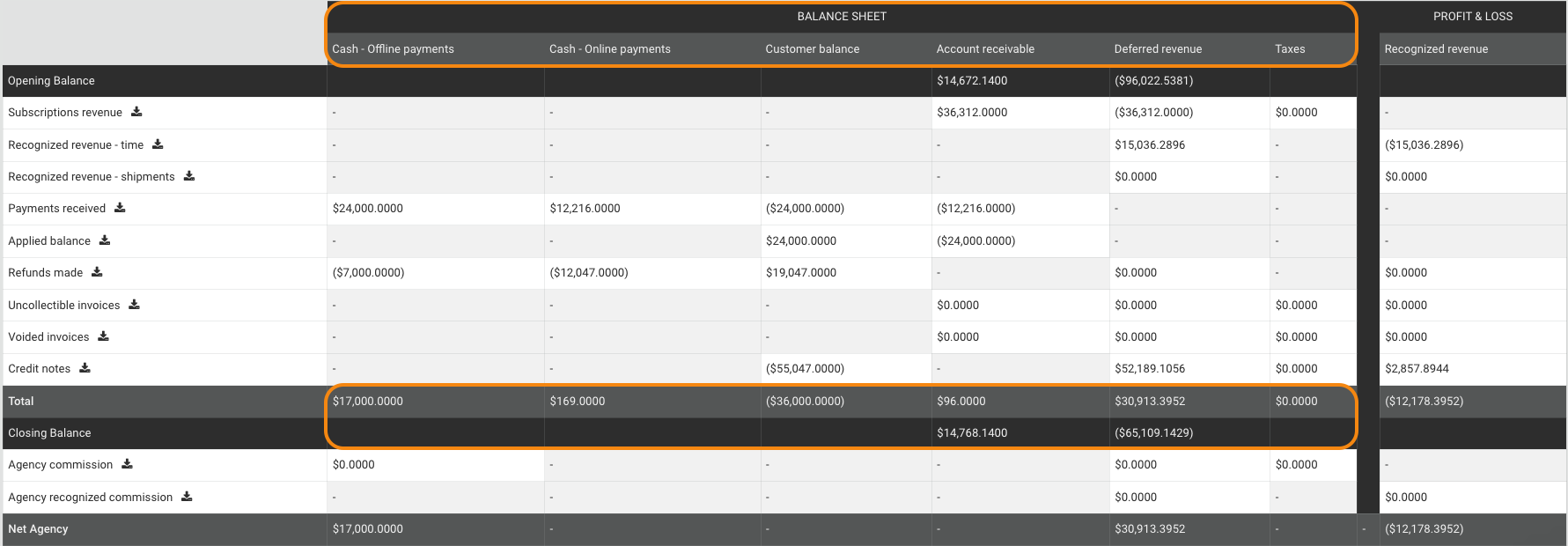
- Cash - Offline Payments: Records offline payments such as cash, checks, and wire transfers.
- Cash - Online Payments: Records online payments such as credit and debit cards.
- Customer Balance: Tracks credits and debits created by prepayments and refunds.
- Account Receivable: Tracks unpaid invoices.
- Deferred Revenue: Tracks billed revenue that has not been recognized yet.
- Taxes: Tracks taxes collected on goods and services.
Profit and Loss Account
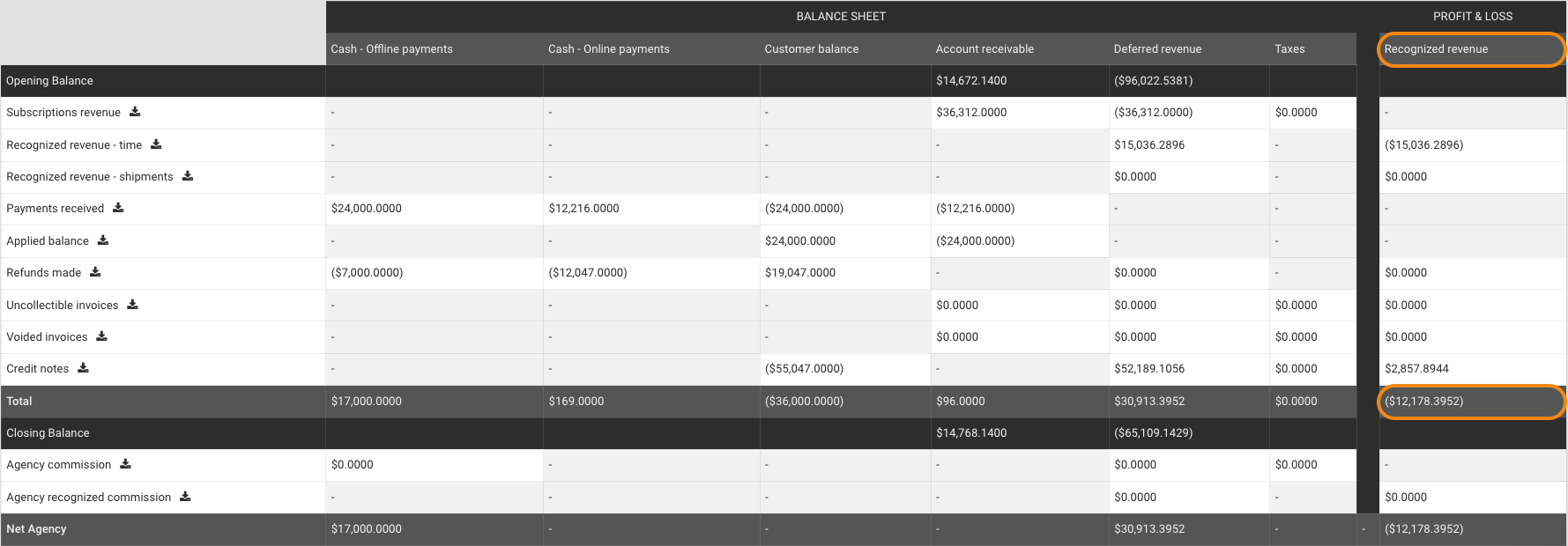
- Recognized Revenue: Revenue earned for goods or services already delivered.
Transaction Categories
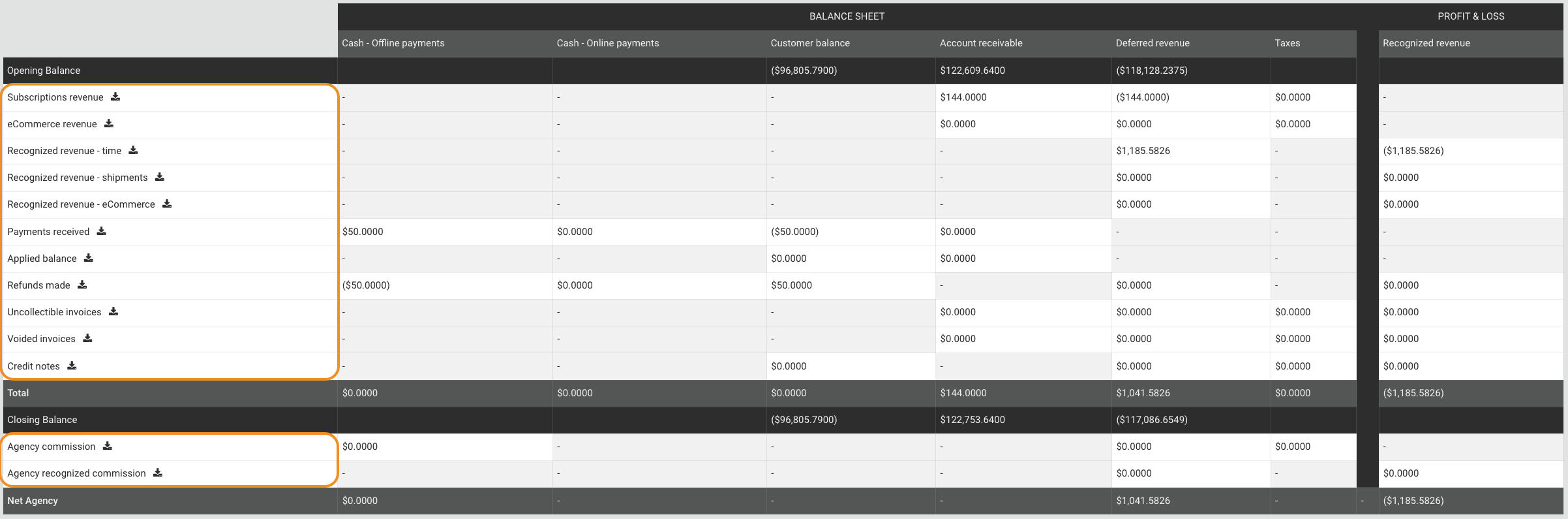
Transaction rows fall into three groups:
- Revenue Transactions: Subscriptions Revenue, eCommerce Revenue, Recognized Revenue - Time, Recognized Revenue - Shipments, and Recognized Revenue - eCommerce.
- Cash Flow Transactions: Payments Received, Applied Balance, Refunds Made, and Credit Notes.
- Other Transactions: Uncollectible Invoices, Voided Invoices, and agency commission transactions.
Revenue Recognition Timing
By default, Pelcro recognizes revenue based on the invoice creation date. For products configured with the invoice-payment-based recognition strategy, Pelcro recognizes revenue only for paid invoices, starting from the invoice payment date. Subscription cancellations also stop time-based revenue recognition and recognize any remaining deferred revenue. To learn more, see Create a new product.
Dashboard View vs Exports
Understanding the difference between what you see on the dashboard page and what appears in exports is critical for accurate reporting.
Dashboard View (Cached Data)
The numbers displayed on the accounting dashboard page are retrieved from a cached database table that is regenerated automatically on a schedule. This provides fast page load times but means the data may be several hours out of date.
Cache Regeneration Schedule:
The system automatically regenerates the dashboard cache using two scheduled processes:
-
Daily Regeneration (Days 2-31 of the month)
- Runs every day at 1:30 AM EST
- Regenerates data for the current month only
-
Monthly Regeneration (1st of the month)
- Runs on the 1st day of each month at 1:30 AM EST
- Regenerates data for current month + previous month
What this means:
- Dashboard data can be up to 23 hours out of date
- If you view the report at 1:00 AM, you're seeing data calculated at yesterday's 1:30 AM
- New transactions that occur after 1:30 AM won't appear until the next regeneration
Exports (Real-Time Data)
When you export accounting data (using the download icon next to each row), the system calculates values directly from raw transaction data at the moment you request the export.
Key characteristics:
- Always shows current, up-to-the-second values
- 100% accurate as of the export timestamp
- Takes longer to generate than viewing the dashboard page
- Never uses cached data
Why They Don't Match
Between the last cache update and when you view/export, new transactions occur:
- Subscriptions recognize revenue continuously as time passes
- New invoices are created
- Customers make payments
- Refunds, credit notes, and adjustments are processed
Real-world example:
- Dashboard view at 4:00 PM: $334,265.69 (calculated at 1:30 AM)
- Export at 4:00 PM: $341,791.96 (calculated at 4:00 PM)
- Discrepancy: $7,526.27 in transactions over 14.5 hours
When to Use Each
Use Dashboard View when:
- You need a quick overview of the month's activity
- You're monitoring general trends
- Exact precision isn't critical
Use Exports when:
- You need accurate numbers for reporting or reconciliation
- You're doing month-end close
- You're providing data to accounting systems or auditors
- You need to verify specific transaction details
Why the Cache Exists
The cache provides a performance optimization - calculating all accounting values from raw data for every page load would be extremely slow. The scheduled regeneration ensures data is reasonably current while keeping the page responsive.
Export Details
Export Transaction Details
Use the download icon next to any transaction row to export the transactions that make up that total.
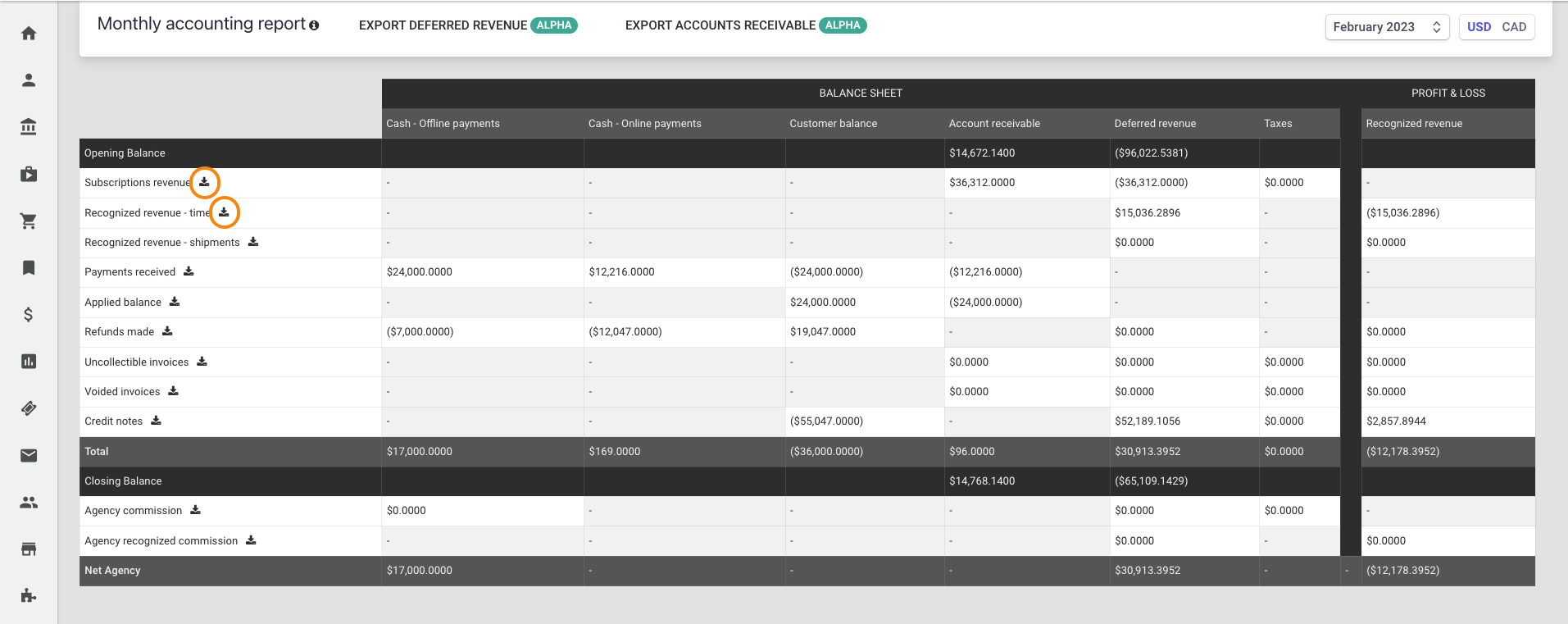
After you request an export, Pelcro emails you a download link.
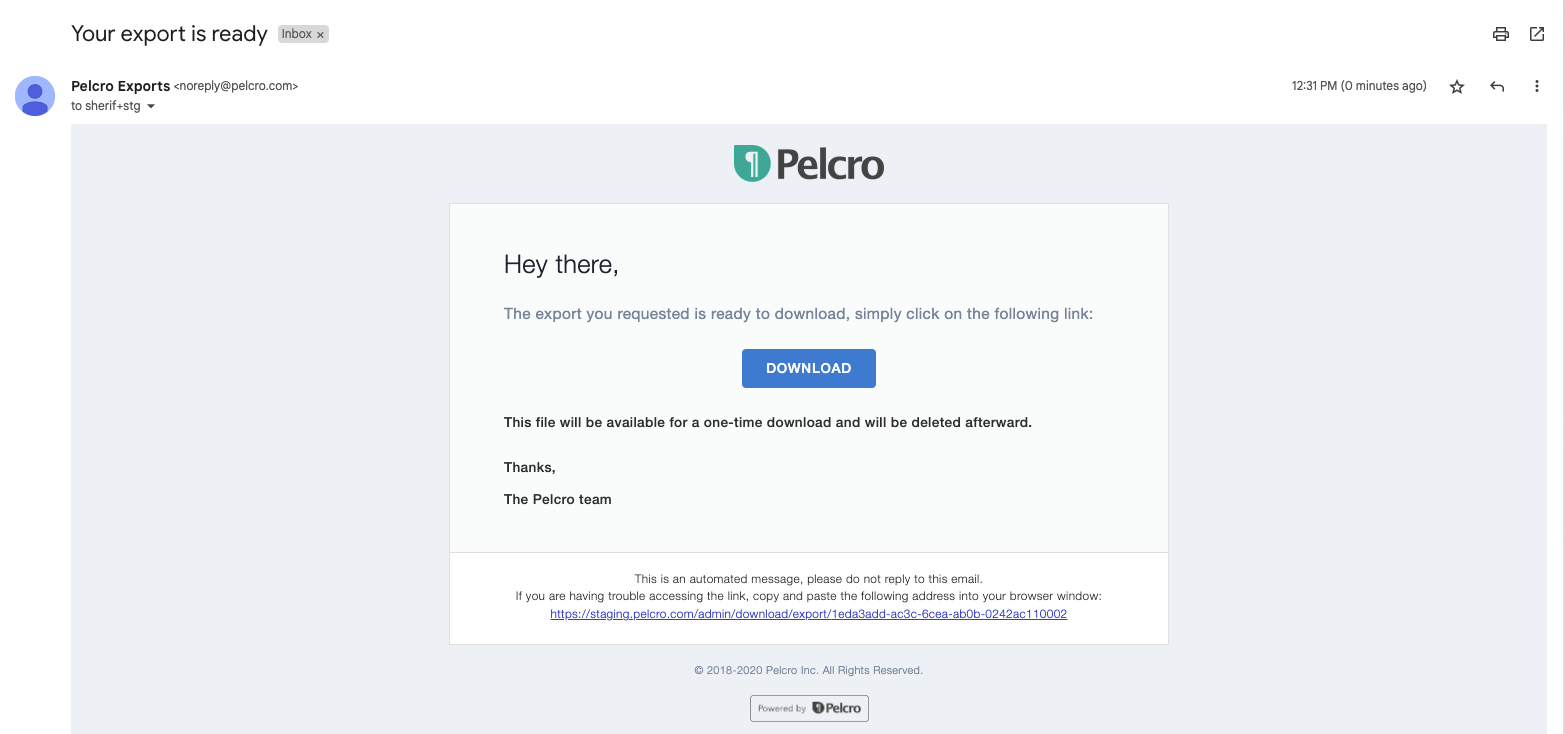
Export emails can take a few minutes to arrive. If you have not received the email after 15 minutes, contact support.
Export Ledger Account Details
You can also export details for these ledger accounts:
- Account Receivable
- Deferred Revenue
The ALPHA Account Receivable and Deferred Revenue export buttons at the top of the page export data from the beginning of your accounting phase up to the selected month. To download monthly reports, use the buttons under the totals column for Account Receivable and Deferred Revenue.
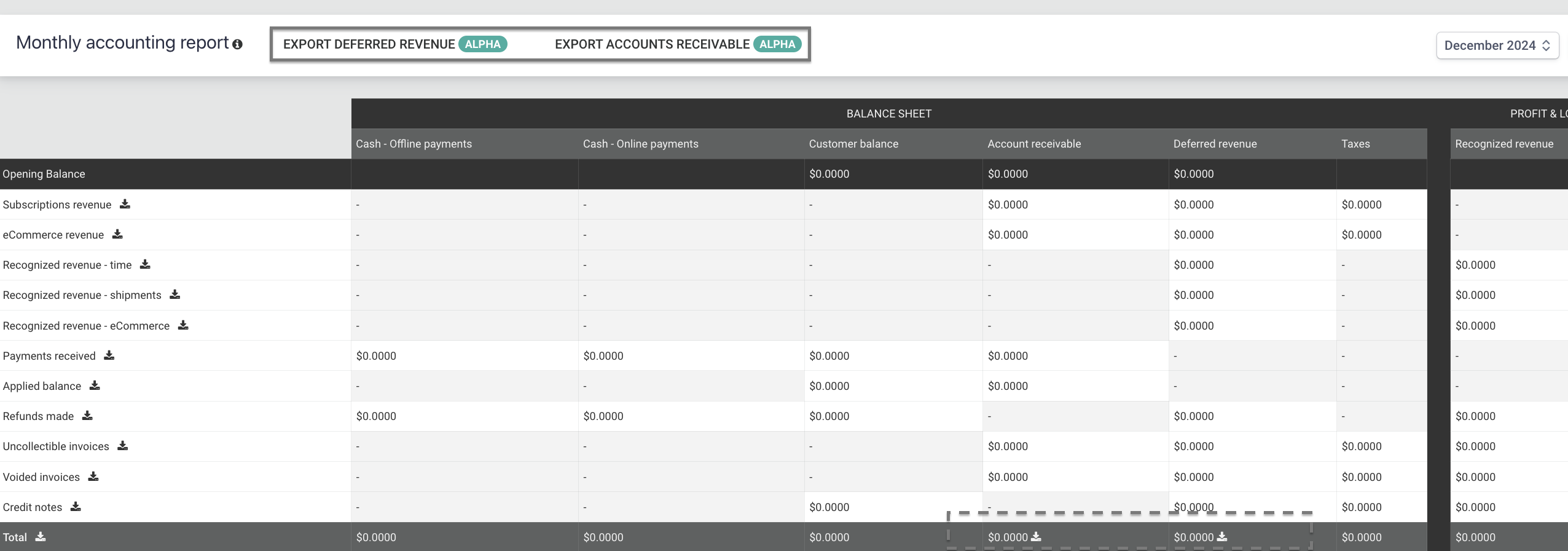
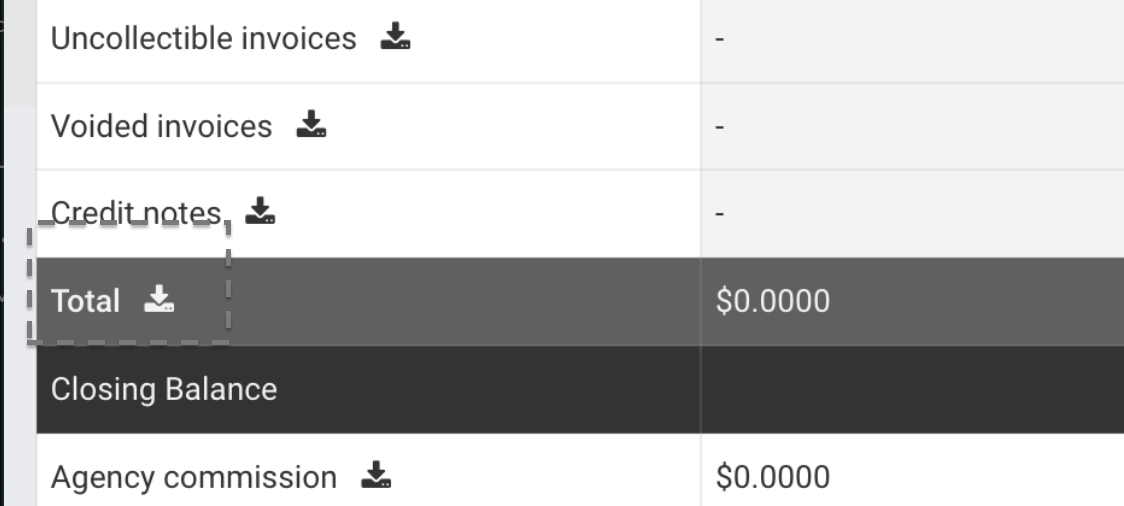
Export All Totals Together
Use the total export to download data from all relevant ledgers in one file instead of downloading separate files one by one.
Historical Data Changes
Understanding how current actions can affect past months' accounting is critical for accurate financial reporting.
How Transactions Are Dated
Each transaction appears in the accounting report based on when the action occurs, not when the original invoice was created. This creates scenarios where actions taken today can retroactively affect the accounting for months in the past.
Actions That Affect Previous Months
The following actions appear in the current month's accounting but relate to invoices or subscriptions from previous months:
Invoice Adjustments:
- Voiding an Invoice - If you void a July invoice in October, the void transaction appears in October's "Voided Invoices" row, but it relates to July's original revenue
- Marking Invoices Uncollectible - If you mark a July invoice as uncollectible in October, the write-off appears in October's "Uncollectible Invoices" row
- Late Payments - If a customer pays a July invoice in October, the payment appears in October's "Payments Received" row, not in July
- Issuing Refunds - If you refund a July payment in October, the refund appears in October's "Refunds Made" row
Customer Credits and Adjustments:
- Creating Credit Notes - If you issue a credit note for a July invoice in October, it appears in October's "Credit Notes" row
- Applying Customer Balance - If a customer uses account balance to pay a July invoice in October, it appears in October's "Applied Balance" row
Subscription Changes:
- Subscription Cancellations - Canceling a subscription affects revenue recognition calculations for all months in the subscription period, including past months
Impact on Cached Dashboard Data
Here's why this creates a reporting issue:
Example Timeline:
- July: Invoice created for $100 → July accounting shows +$100 Account Receivable, -$100 Deferred Revenue
- August: Invoice marked uncollectible → August shows -$100 AR, +$100 DR (offsetting entry)
- Cache Regeneration: July cache gets updated (as it's previous month) ✓
- October: Customer pays the invoice → October shows +$100 Cash, -$100 AR
- Cache Regeneration: July cache is NOT updated (too old) ✗
The Problem:
- July's exports will correctly show the full history (invoice created, marked uncollectible, then paid)
- July's cached dashboard remains frozen at the August state (showing the invoice as uncollectible)
- Only current and previous month caches are regenerated automatically
When Historical Data Becomes Stale
Cached dashboard data for any month older than 2 months can become inaccurate when:
- Old invoices are voided, marked uncollectible, or paid
- Refunds are issued for old transactions
- Credit notes are created for old invoices
- Customer balance is applied to old invoices
- Subscriptions spanning multiple months are canceled or modified
Best Practices
For Current and Recent Data (Last 2 Months):
- Dashboard view is reliable - caches are regenerated automatically
- Small discrepancies may exist due to daily cache schedule
For Historical Data (3+ Months Old):
- Always use exports for accurate reporting
- Dashboard view may not reflect recent adjustments to old transactions
- Exports recalculate from raw data and include all retroactive changes
For Month-End Close:
- Wait until the 2nd day of the month (after cache regeneration) for most accurate dashboard data
- Use exports for final reconciliation and external reporting
- Document any retroactive adjustments made to previous months
Reconcile Your Accounting Data
Reconcile Ledger Accounts
Reconciliation confirms that each ledger account matches an independent source of data.
- Cash - Offline Payments: Compare against the payments export for the accounting period and your bank statement.
- Cash - Online Payments: Compare against the payments export and your payment processor transactions.
- Customer Balance: Compare against the customer balance export and supporting bank or processor activity.
- Deferred Revenue: Compare against invoices and credit notes for the same accounting period.
- Taxes: Compare against your tax export and any external tax reports you rely on.
- Recognized Revenue: Compare against invoices and credit notes for the same accounting period.
Reconcile Pelcro, Your Payment Processor, and Your Bank
| Layer | Source | What It Represents |
|---|---|---|
| Pelcro | Online and offline payments | Payments and refunds tied to invoices |
| Payment Processor | Online transactions only | Charges, refunds, disputes, and holds processed by the gateway |
| Bank Account | Bank statements | Cash that actually settled into your bank |
Online Payments
- Export the Payments Report from Pelcro for the accounting period.
- Filter the report to Online payments.
- Export the matching transactions report from your payment processor for the same period.
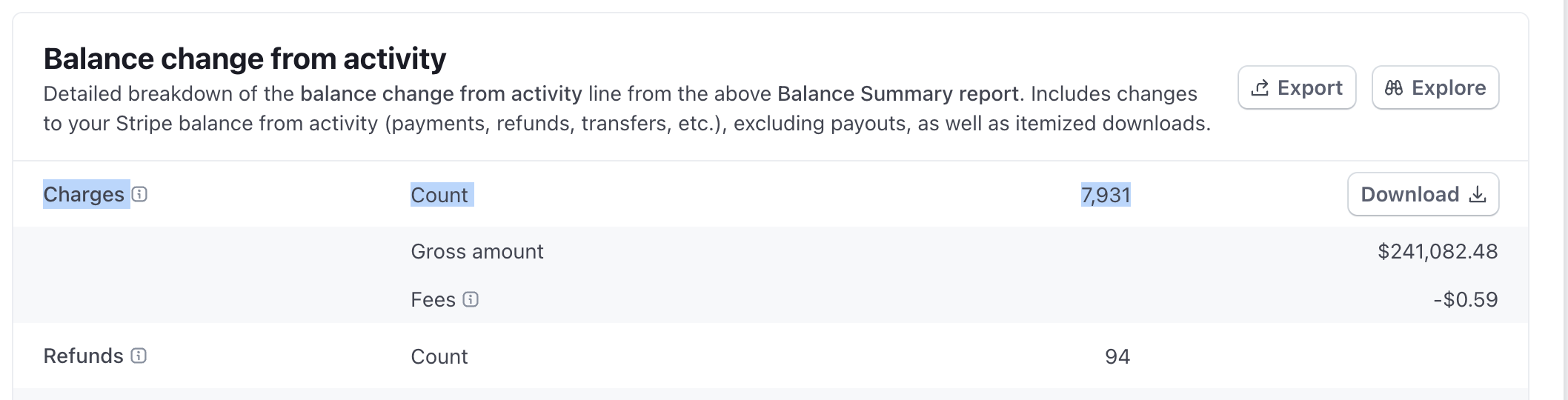
- Compare the totals. If they do not match, first check timezone differences and unresolved disputes.
Offline Payments
- Export the Payments Report from Pelcro for the accounting period.
- Filter the report to Offline payments.
- Compare the result with your bank statement.
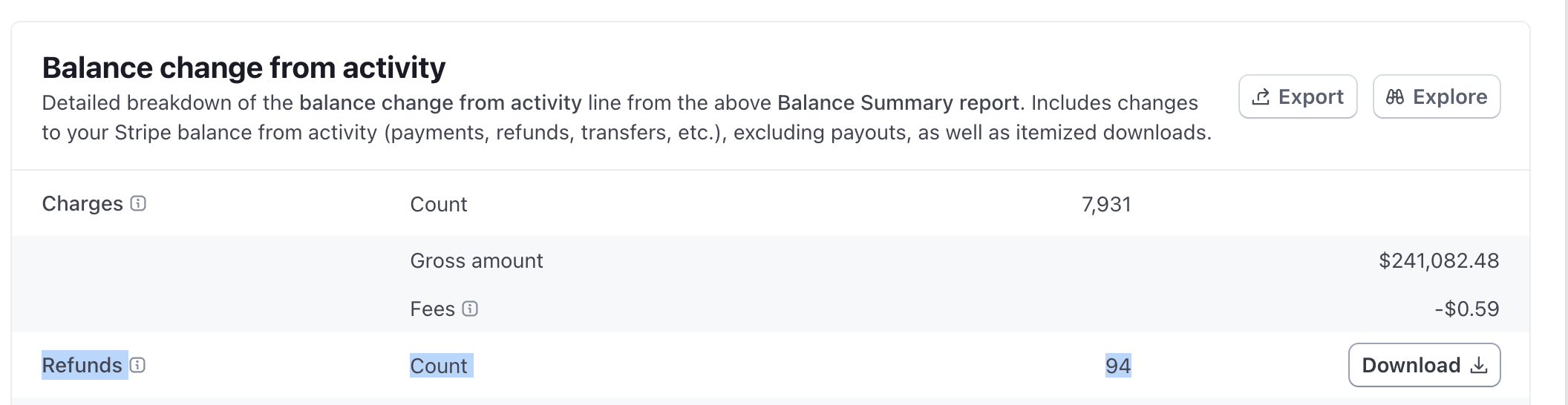
Refunds
- Export Pelcro's refunds data and your payment processor's refunds report for the same date range.
- Match records using the invoice number as the primary reference.
- Investigate refunds that appear in only one system.
Disputes
Payment processors can hold or reverse funds as soon as a dispute opens. Pelcro keeps the charge marked as paid until it receives the final
charge.dispute.closedevent. If the dispute is lost, Pelcro creates a refund record. If the dispute is won, Pelcro keeps the original payment unchanged.
Payouts to the Bank
- Match each payout amount and payout date to the corresponding bank deposit.
- Identify differences caused by cutoff timing, processing fees, held funds, refunds, or other adjustments.
- Track unresolved timing differences in a clearing account in your accounting system.
Common Questions
Why don't the numbers in my export match the dashboard page?
This is the most common question - and it's expected behavior, not a bug.
The dashboard page displays cached data that updates daily at 1:30 AM EST, while exports calculate values in real-time. Between cache updates, new transactions occur (subscriptions recognizing revenue, new invoices, payments, refunds), causing the numbers to differ.
For a detailed explanation, see the Dashboard View vs Exports section above, which covers:
- How the cache regeneration schedule works
- Why exports always show current values
- When to use each method
- Real-world examples of discrepancies
Why do older months show incorrect data in the dashboard view?
If you void an invoice, issue a refund, or make other adjustments to transactions from 3+ months ago, the dashboard view for those old months won't reflect these changes. This is because only the current and previous month's caches are regenerated automatically.
For a detailed explanation, see the Historical Data Changes section above, which covers:
- Which actions affect previous months' accounting
- Why cached data becomes stale for old months
- Best practices for accurate historical reporting
- When to use exports vs dashboard view
Key takeaway: Always use exports (not the dashboard view) when reporting on months older than 2 months, especially if you've made any adjustments to old transactions.
Why do some numbers appear negative?
In accounting, different account types have different "natural" signs:
- Assets (Cash, Account Receivable): Positive is good (you have more)
- Liabilities (Deferred Revenue, Taxes): Negative is normal (you owe it)
- Income (Recognized Revenue): Negative represents revenue earned
How do I find a specific transaction?
Each row type has a download icon (if you have permissions) that exports all transactions included in that row for the month.
Why don't the numbers match my bank account?
Accounting reports use accrual accounting (when invoices are created), not cash accounting (when money moves). The "Cash" columns show actual money movement.
Can I see previous months?
Yes, use the month selector at the top of the accounting report page. Opening and closing balances connect months together.
What if I see $0 for everything?
This is normal if you had no activity in that month, or if you're viewing a currency you don't use. Check the currency selector at the top.
Are custom accounting reports available?
Yes. Pelcro offers custom accounting report services for businesses that need a different layout or structure. Contact your Pelcro account manager for details.
Getting Started
New to accounting reports? Start here:
- Explore Revenue Streams - where invoices and billing begin
- Read about Subscriptions Revenue - the most common transaction type
- Understand how the three columns (AR, DR, Taxes) work together
- Then explore other sections as needed
Looking for something specific?
- Use the documentation sections above to jump to the right topic
- Check the Quick Reference Table for a high-level overview
- Navigate through section pages to find detailed transaction types
Updated about 2 hours ago