---
updatedAt: 2026-09-03T16:14:25.000Z
agentTools:
projectIndex: https://docs.pelcro.com/llms.txt
---
# Quotes - CPQ
# CPQ (Configure, Price, Quote)
This guide explains how CPQ works in Pelcro, how to generate a quote from a plain-language deal description, and how to review, send, and track it.
By the end, you will understand how to describe a deal to the AI agent, complete the required details it asks for, review the generated quote and payment schedule, and send it to a prospect as a PDF — all without leaving the platform.
### **Beta:** CPQ is currently in beta.
***
## What is CPQ?
CPQ (Configure, Price, Quote) lets your sales team assemble a structured, ready-to-send quote by **describing the deal in plain language**. Instead of building line items, discounts, and payment schedules by hand across separate tools, you describe products, prices, discounts, onboarding periods, and term incentives, and the AI agent turns that into an editable quote with a live preview.
CPQ generates:
* Itemized **line items** with service windows, quantities, unit prices, and discounts
* Optional **multi-year term options**, each with its own total and discount
* A month-by-month **payment schedule** split by phase (recurring, one-time, and cash due)
* A branded **PDF** delivered to the prospect through Email Center
***
## Accessing CPQ
CPQ lives under **Billing** in the dashboard:
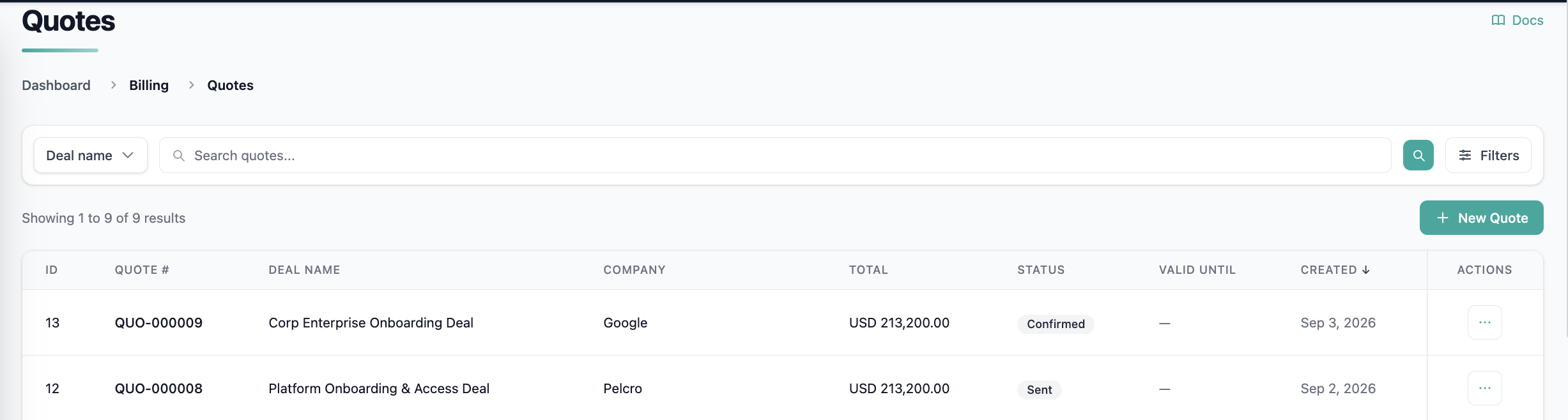
* **Billing → Quotes** — the list of all quotes, where you search, filter, and track status.
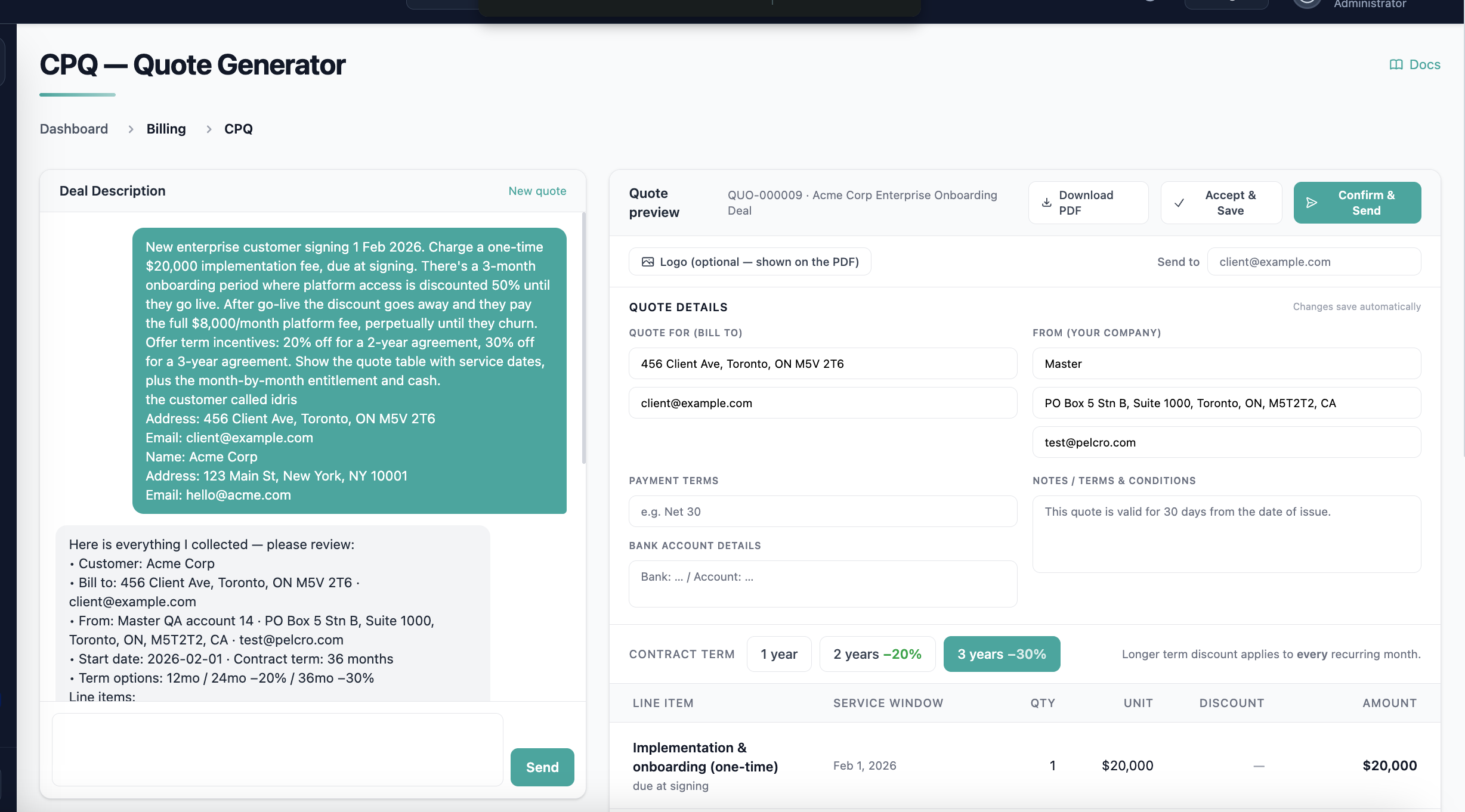
* **Billing → CPQ** — the quote generator, where you create a new quote from a deal description.
***
## How It Works
CPQ is agent-driven. You give it a description of the deal; it asks for anything required that is missing, then renders the quote.
1. **Describe the deal.** In the **Deal Description** panel, write the deal in plain language — products, prices, discounts, onboarding periods, and term incentives. You can also **dictate the deal by voice** instead of typing.
2. **Answer the agent's prompts.** If a required field is missing (customer, rate card, term, or start date), the agent asks for it before it will finalize the quote.
3. **Review the preview.** The **Quote preview** panel renders once all required deal information is gathered. Until then it shows *"No quote yet."*
4. **Finalize.** Accept and save the quote, confirm and send it, or download it as a PDF.
***
### Required fields
The agent will not finalize a quote until these are provided. If they are not in your description, it will prompt you for them:
| Field | Description |
| -------------- | ------------------------------------------------------------------ |
| **Customer** | Who the quote is billed to (name, address, email). |
| **Rate card** | The products/prices the quote draws from. |
| **Term** | The contract length (e.g., 1, 2, or 3 years / a number of months). |
| **Start date** | When the contract or service window begins. |
***
## Understanding the Quote
A generated quote is organized into a few sections.
### Details and parties
The **Details** panel holds the quote number, deal name, date of issue, valid-until date, contract term, payment terms, purchase order, currency, and the timestamp it was sent. Two address blocks capture the parties:
* **Quote for (bill to)** — the prospect receiving the quote.
* **From (your company)** — your sending organization.
### Line items and contract terms
Each line item shows its **service window**, **quantity**, **unit price**, **discount**, and **amount**. Typical items include a one-time implementation/onboarding fee due at signing, a discounted onboarding-phase window, and the live platform-access window.
When a deal includes multiple term options, a **Contract Term** selector lets you switch between them (for example, *1 year*, *2 years −20%*, *3 years −30%*). Each option recalculates the line items and total. The summary shows the full **list price**, the amount saved, and the **total contract value**.
### Payment schedule
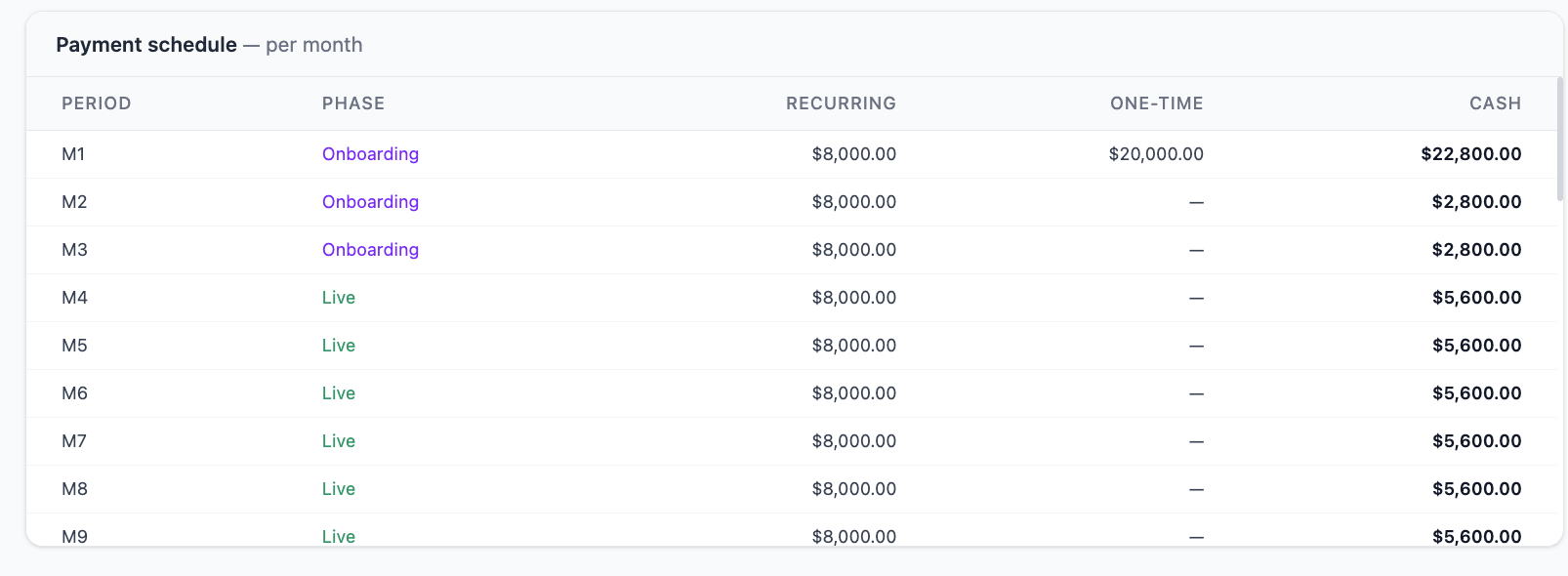
The **Payment schedule** breaks the contract down **per month**, labeling each period by phase (e.g., *Onboarding* vs. *Live*) and splitting the amount due into **recurring**, **one-time**, and **cash** columns — so both you and the prospect can see exactly what is billed each month.
***
## Sending a Quote
From the quote you can:
* **Download PDF** — save a copy of the quote as a PDF.
* **Accept & Save** — save the quote without sending.
* **Confirm & Send** — generate the PDF from the standard quote template and deliver it to the prospect through Email Center.
Enter the recipient in the **Send to** field and, optionally, **add a logo** to appear on the PDF. When a quote includes more than one term option, **each selected term becomes its own page in the attached PDF**, so the prospect can compare 1-, 2-, and 3-year pricing in a single document.
***
## Quote Statuses
Every quote in the **Quotes** list carries a status:
| Status | Meaning |
| ------------- | ----------------------------------- |
| **Draft** | Created and saved but not yet sent. |
| **Sent** | Delivered to the prospect. |
| **Confirmed** | Accepted. |
You can search the list by **deal name** and narrow it with **Filters**.
***
## Rules and Limitations
* CPQ is in **beta**
* A quote cannot be finalized until all **required fields** (customer, rate card, term, start date) are present.
***
## Real-World Example
> *"New enterprise customer signing Feb 1, 2026. Charge a one-time $20,000 implementation fee, due at signing. There's a 3-month onboarding period where platform access is discounted 50% until they go live. After go-live the discount goes away. Offer 20% off for a 2-year agreement and 30% off for a 3-year agreement. Show the quote with service dates and a month-by-month payment schedule."*
From this description, the agent produces:
* An **Implementation & onboarding** line item ($20,000, due at signing)
* A discounted **onboarding-phase** platform-access window
* A full-price **live** platform-access window
* **1-, 2-, and 3-year** term options with the stated discounts applied
* A **per-month payment schedule** separating onboarding and live phases
The rep reviews the preview, picks which terms to include, adds a logo, and sends — with each term rendered as its own page in the PDF.
##
# Sibling pages
* [Invoices](https://docs.pelcro.com/docs/invoices.md)
* [Payments](https://docs.pelcro.com/docs/payments.md)
* [Credit Notes](https://docs.pelcro.com/docs/credit-notes.md)
* [Refunds](https://docs.pelcro.com/docs/refunds.md)
* [Coupons](https://docs.pelcro.com/docs/coupons.md)
* [Customer Balance](https://docs.pelcro.com/docs/customer-balance.md)
* [Disputes](https://docs.pelcro.com/docs/disputes.md)
* [Organizations](https://docs.pelcro.com/docs/organizations.md)